U.AKASH CL-CY Level 1 Report CSE'28
2 / 10 / 2026
TASK 1: Working with Git and GitHub
In this task, I learned the basics of Git and GitHub and how they are used for version control, managing different versions of a project, and collaborating with other developers.
I started by creating a simple Python calculator and used Git to track the changes made to it. I created branches for adding new operations, merged the changes into the main branch, and explored different ways of managing commits using git revert and git cherry-pick.
Git Basics
I practiced the basic Git workflow by creating a local repository and tracking changes made to the calculator program.
Some of the commands I used were:
| Command | Purpose |
|---|---|
git init | Creates a new Git repository |
git status | Shows the current status of the repository |
git add | Moves changes to the staging area |
git commit | Records changes in Git history |
git log | Displays the commit history |
git branch | Creates or lists branches |
git checkout | Switches between branches |
git merge | Combines changes from one branch into another |
git remote | Manages connections to remote repositories |
git push | Uploads local commits to GitHub |
git clone | Downloads a repository from GitHub |
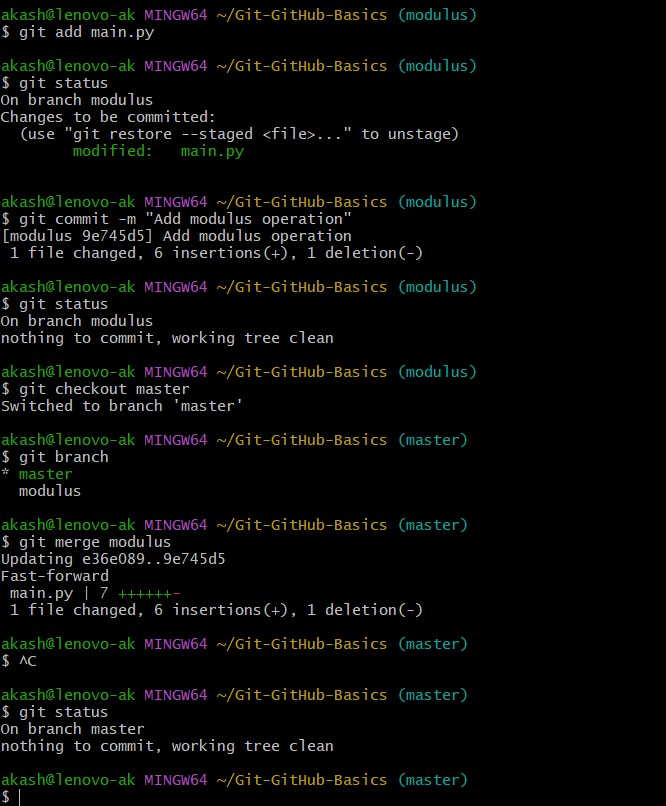
I created separate branches for the calculator features and worked on them independently before merging them into the master branch.
Git Revert
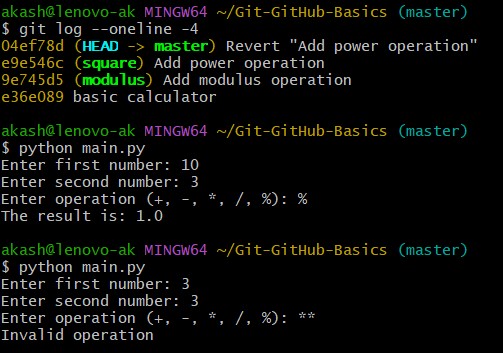
I used git revert to undo the power operation that had been added to the calculator.
Instead of deleting the original commit, Git created a new commit that reversed the changes made by that commit. This helped me understand how Git maintains the complete history of a project even when changes need to be undone.
Git Cherry-Pick
After reverting the power operation, I used git cherry-pick to apply the original power-operation commit back to the current branch.
git cherry-pick
Open-Source Contribution
As part of this task, I also learned how to contribute to an open-source project using GitHub.
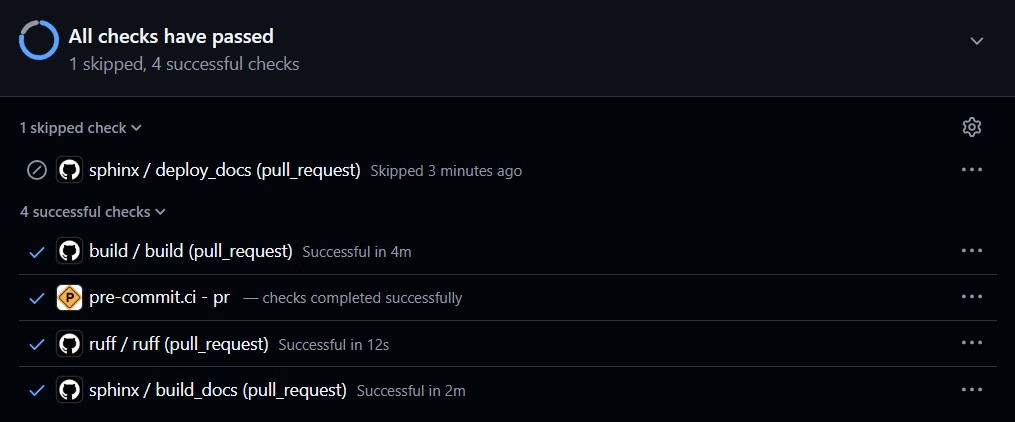
I forked the TheAlgorithms/Python repository to my GitHub account and cloned the fork to my local system. I then created a separate branch called add-simple-algorithm so that my changes could be developed independently from the main branch.
I added a new Harmonic Mean algorithm in the existing maths directory.
Images
TASK 2: Exploring Docker Fundamentals
In this task I learned the fundamentals of Docker and how containers are used to run applications in an isolated and lightweight environment. I started by understanding the difference between containers and virtual machines, and then practiced basic Docker commands using the Docker CLI.
A Docker image acts as a template containing the files, dependencies and configuration required to run an application, while a container is a running instance of that image. I also explored Docker Hub, which is a public registry where Docker images can be stored and shared.
Understanding Containers and Virtual Machines
A virtual machine runs a complete guest operating system on top of a hypervisor. Since each virtual machine includes its own operating system, it generally requires more storage and system resources.
A container, on the other hand, shares the host operating system kernel while isolating the application and its dependencies. This makes containers lightweight, faster to start and convenient for deploying applications.
| Feature | Containers | Virtual Machines |
|---|---|---|
| Virtualization | Operating-system level | Hardware level |
| Operating System | Shares the host kernel | Has its own guest OS |
| Startup | Usually very fast | Usually slower |
| Resource Usage | Lower | Higher |
| Size | Generally smaller | Generally larger |
| Isolation | Application/process level | Machine level |
This comparison helped me understand why Docker containers are widely used for application development, testing and deployment.
Docker Containers and Commands
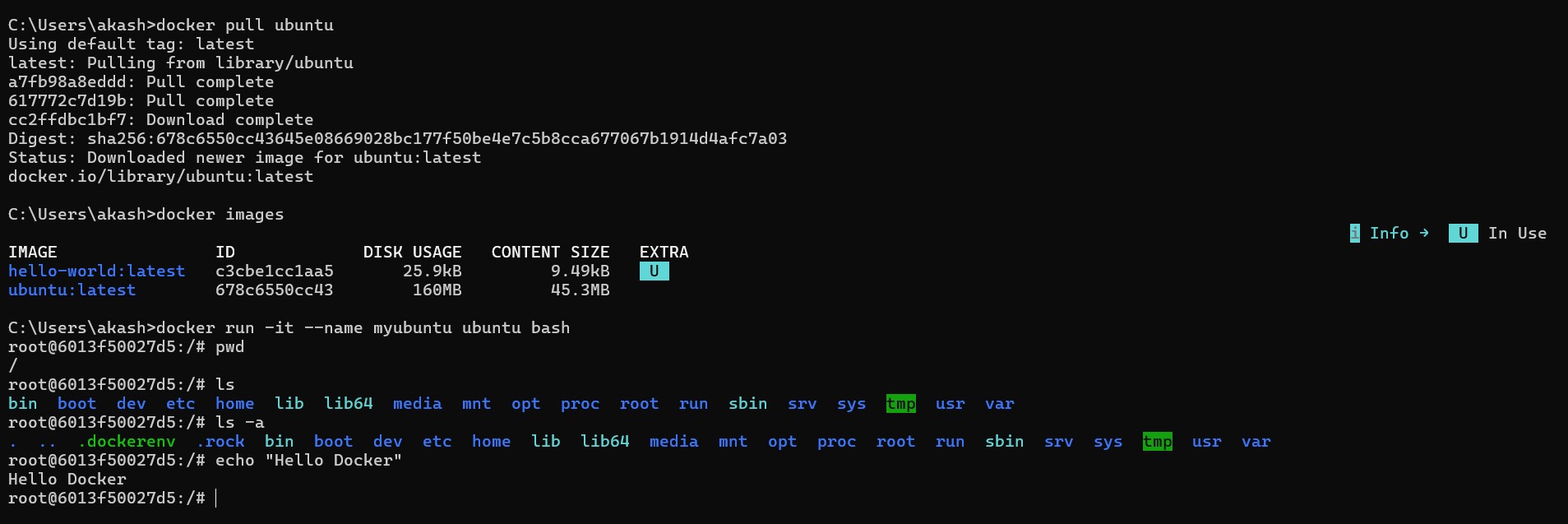
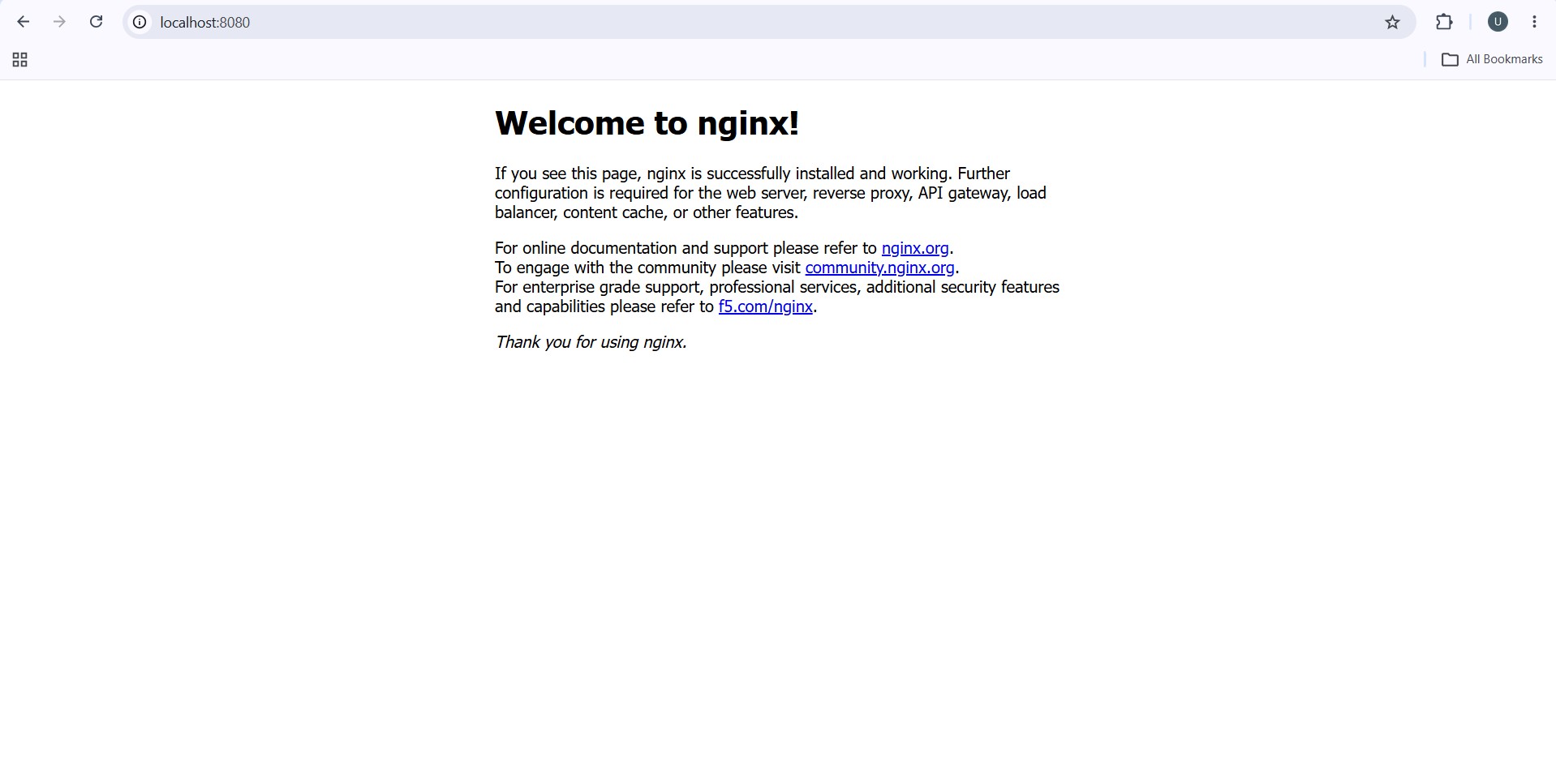
I used Docker CLI commands to pull the Ubuntu image from Docker Hub and run it as a container. I also worked with an Nginx container by mapping its port and accessing the Nginx welcome page through the browser.
I practiced commands to view running containers, check container logs, inspect container details and view running processes. Finally, I managed the container lifecycle by starting, stopping, restarting and removing containers.
This task gave me a practical understanding of how Docker images and containers work and how containers can be managed using the command line.
| Command | Purpose |
|---|---|
docker --version | Checks the installed Docker version |
docker pull | Downloads an image from Docker Hub |
docker images | Lists downloaded Docker images |
docker run | Creates and runs a container |
docker ps | Shows running containers |
docker ps -a | Shows all containers |
docker start | Starts a stopped container |
docker stop | Stops a running container |
docker restart | Restarts a container |
docker logs | Displays container logs |
docker inspect | Shows detailed container information |
docker top | Shows processes running in a container |
docker exec -it | Executes a command inside a running container |
docker rm | Removes a container |
docker rmi | Removes a Docker image |
Images
TASK 3: Dockerize a Simple Application
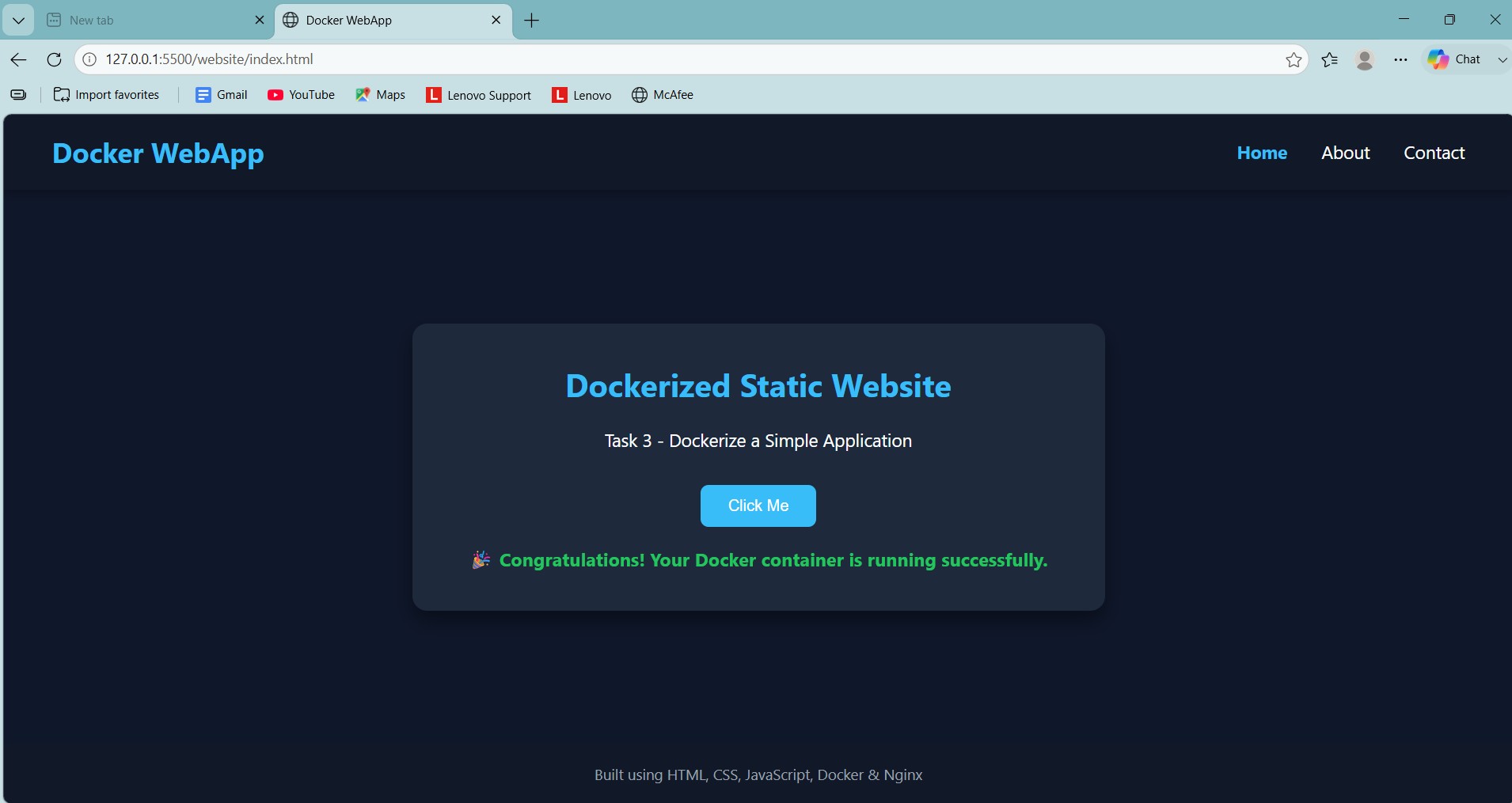
In this task I learned how to containerize a simple static website using Docker. I created a multi-page website using HTML, CSS and JavaScript and used Nginx to serve the website inside a Docker container.
I created a Dockerfile using instructions such as FROM, LABEL, WORKDIR, COPY, EXPOSE and CMD. I also created a .dockerignore file to avoid including unnecessary files in the Docker build context.
After creating the files, I built a Docker image and ran it as a container with port mapping. I accessed the website through the browser and tested its different pages and JavaScript functionality.
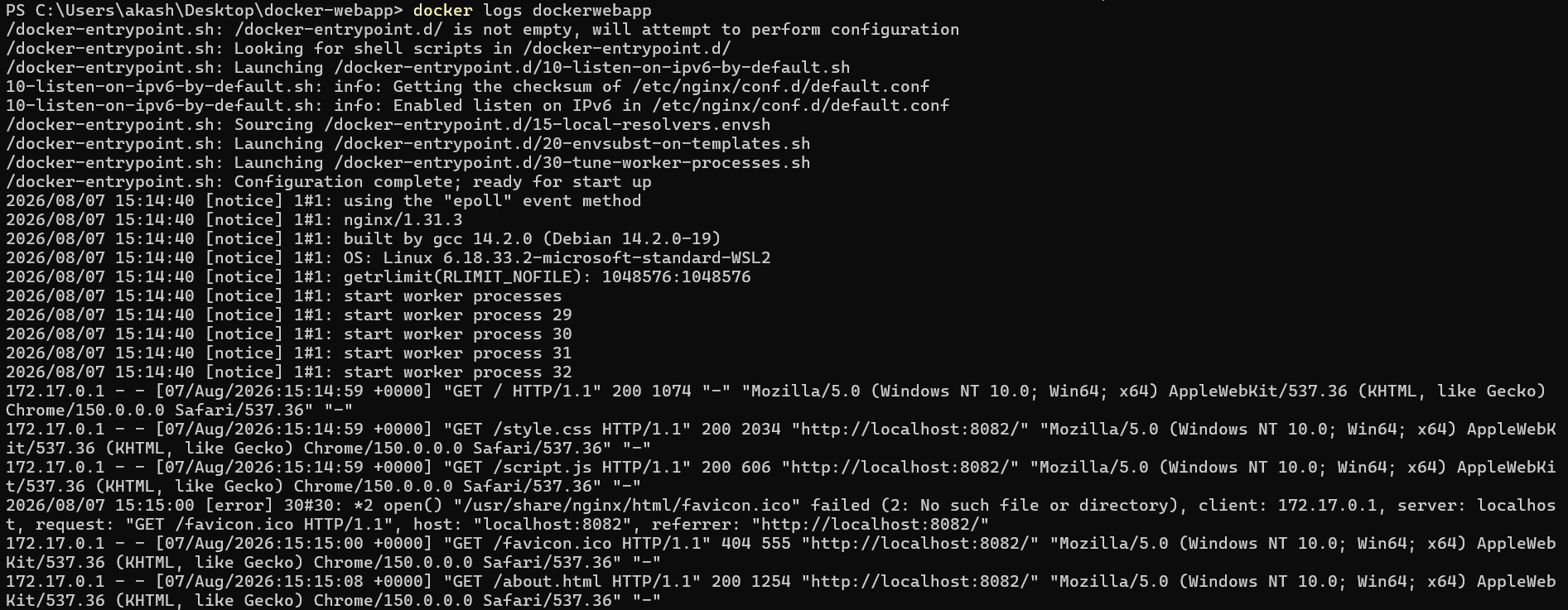
I also practiced useful Docker commands such as docker logs, docker inspect and docker exec to check and explore the running container. Finally, I stopped, started, restarted and removed the container to understand the basic Docker container lifecycle.
I created a Dockerfile to define how the website should be built and run inside the Docker container. The main instructions used in the Dockerfile were:
| Dockerfile Instruction | Purpose |
|---|---|
FROM nginx:latest | Uses the latest Nginx image as the base image. |
LABEL maintainer="Akash" | Adds information about the maintainer of the image. |
LABEL description="Docker Task 3 - Static Website" | Describes the purpose of the Docker image. |
WORKDIR /usr/share/nginx/html | Sets the working directory where the website files are stored. |
COPY website/ . | Copies the website files from the local website folder into the Nginx web directory. |
EXPOSE 80 | Indicates that the container uses port 80 for the web server. |
CMD ["nginx", "-g", "daemon off;"] | Starts Nginx in the foreground when the container runs. |
This task helped me understand how a Dockerfile is used to create an image and how an application can be packaged and run consistently inside a container.
Images
TASK 4: Launch and Manage an AWS EC2 Instance
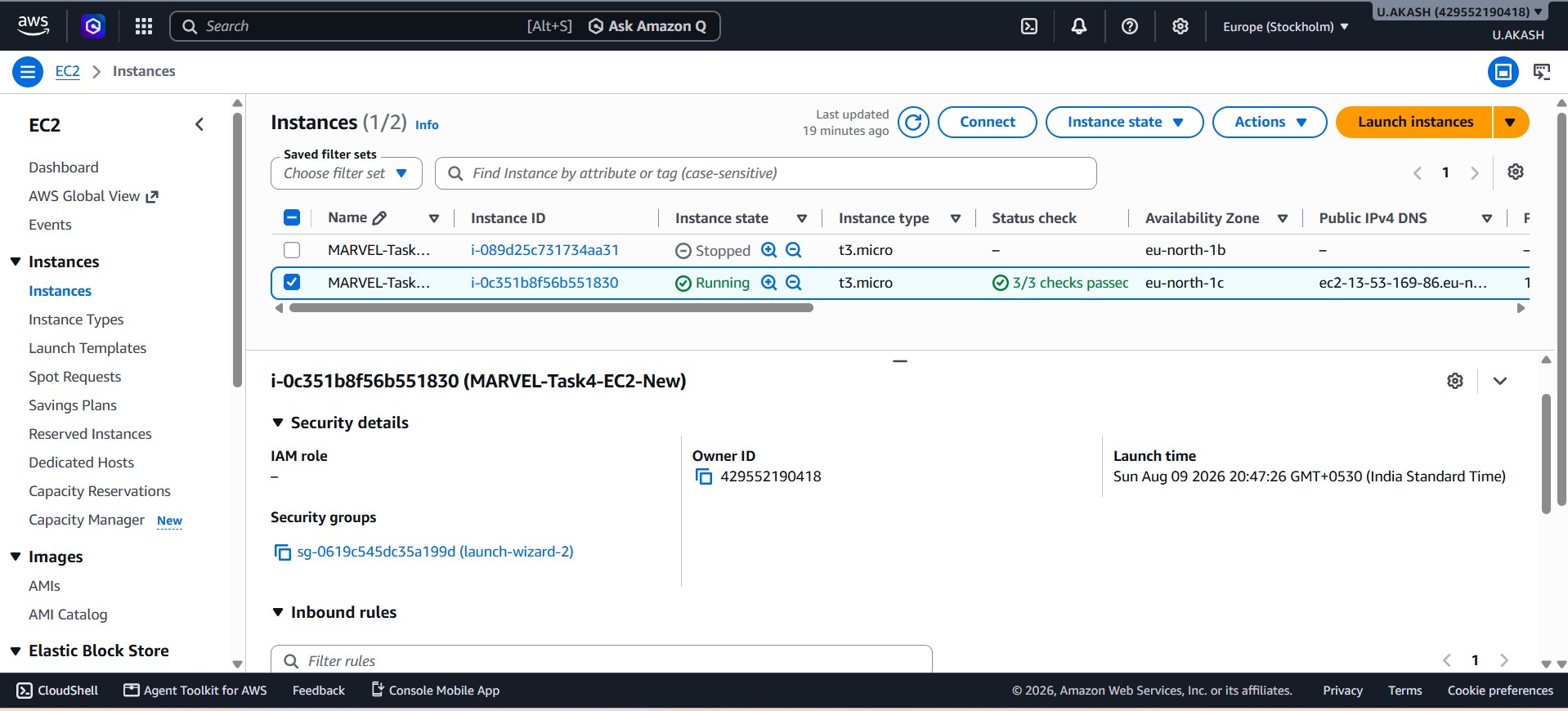
In this task I explored AWS EC2 and learned how to launch and manage a virtual machine in the cloud. I created a t3.micro EC2 instance using Amazon Linux 2023 and configured the security group to allow SSH and HTTP traffic.
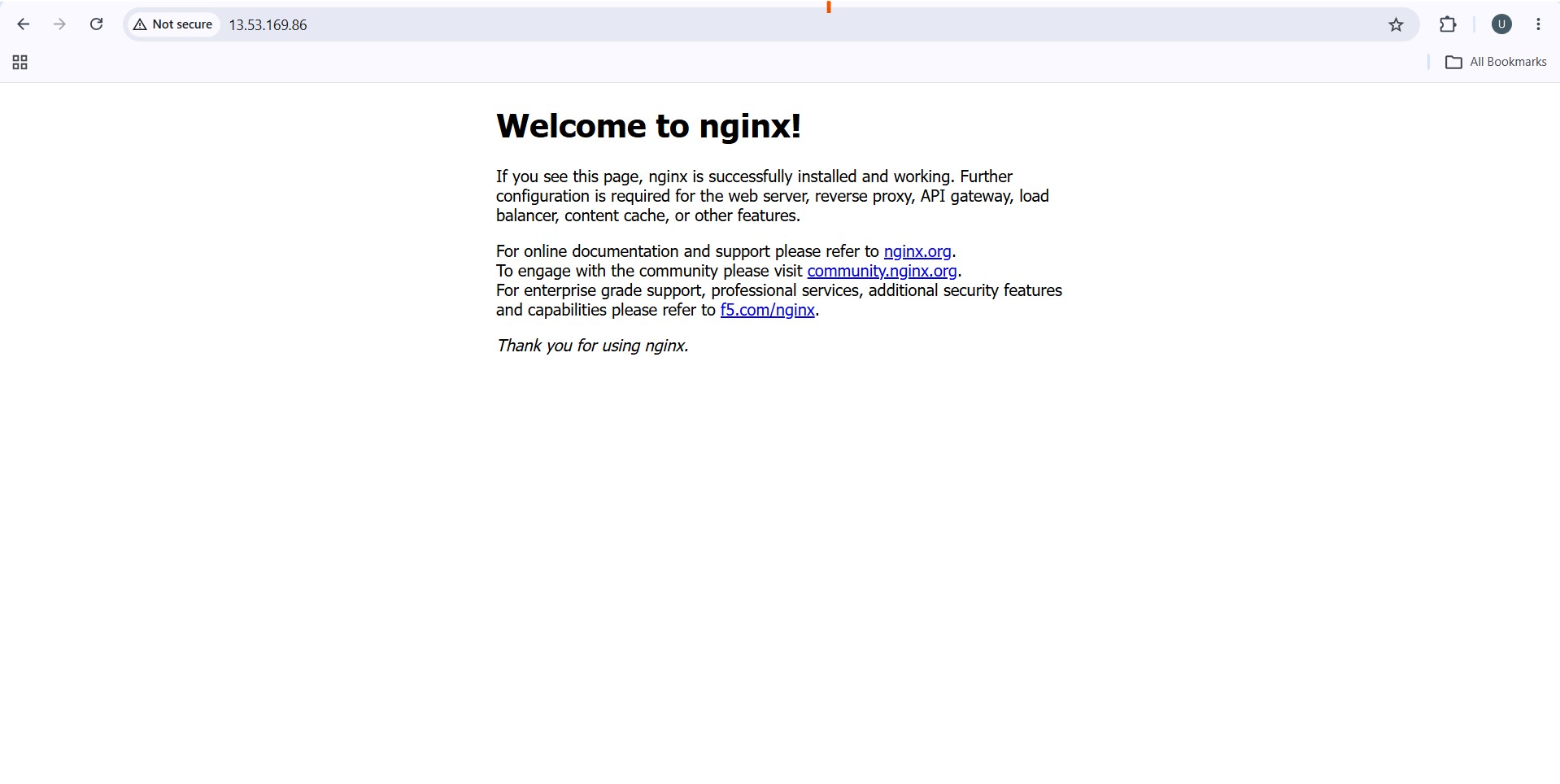
I created and used a .pem key pair to securely connect to the instance through SSH. After connecting, I installed and configured Nginx as a lightweight web server and confirmed that it was running and accessible through the instance's public IP address.
I also checked the CPU and memory resources available to the virtual machine using lscpu and free -h. The instance provided 2 vCPUs and around 913 MiB of memory. I also understood that the t3.micro is a burstable instance type that uses CPU credits when additional CPU performance is required.
Overall, this task gave me practical experience with launching an EC2 instance, securely accessing it, configuring network access, hosting a web server, and understanding the basic CPU and memory resources of a cloud VM.
Images
TASK 5: Kubernetes Basics and Writing Pod Specs
In this task, I learned the basics of Kubernetes and how it is used to manage containerized applications. I understood the role of a Kubernetes cluster, nodes, Pods, and the control plane, and learned how Kubernetes uses YAML manifest files to define and deploy workloads.
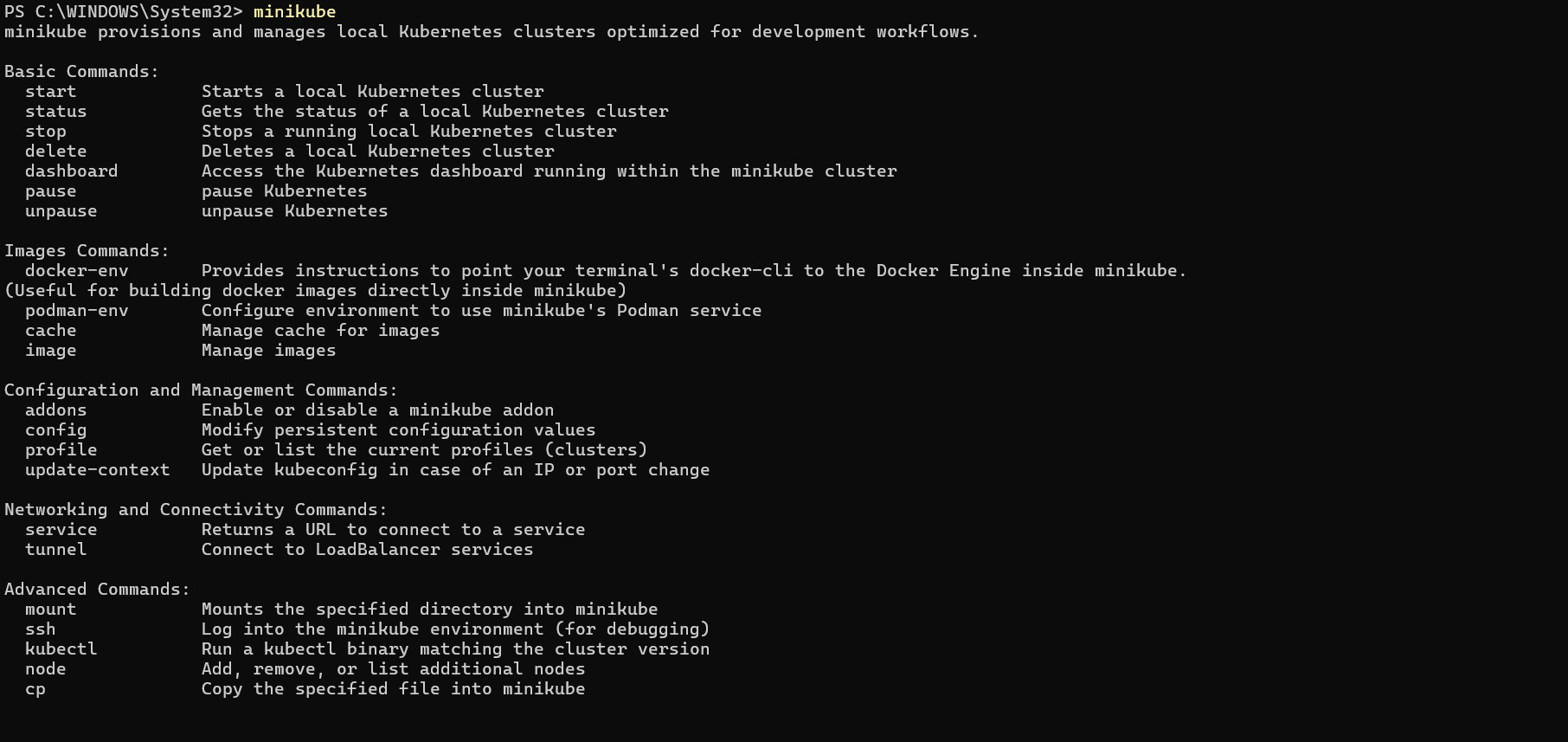
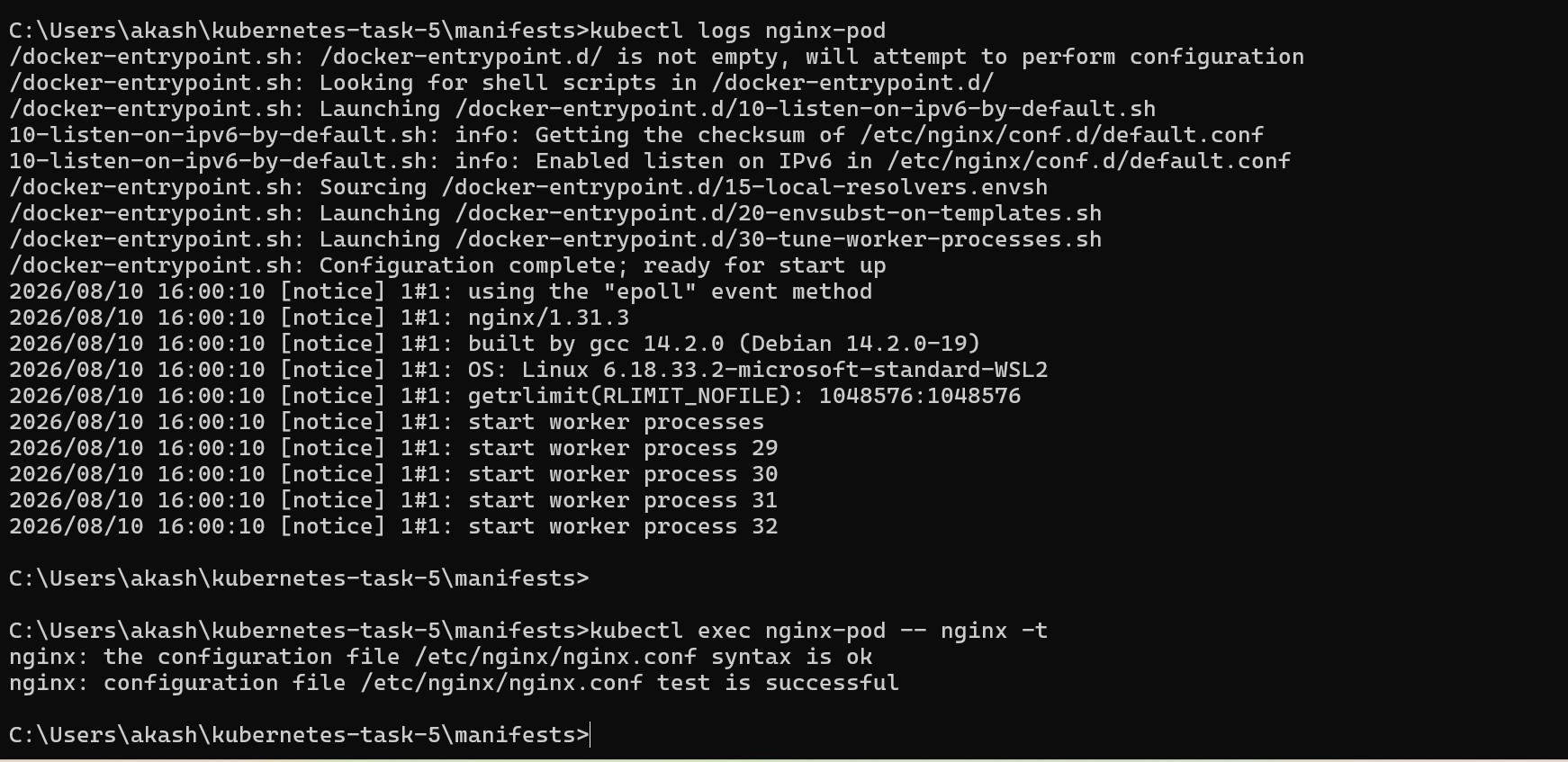
I created a local Kubernetes cluster using Minikube with Docker as the driver and used kubectl to interact with the cluster. I then created a Pod specification for an Nginx container using a YAML manifest.
The Pod manifest defined the Pod name, labels, container name, Nginx image, and container port.
Pod YAML File
I created a pod.yaml file to define the configuration of the Nginx Pod. The main fields used in the file are:
| YAML Field | Purpose |
|---|---|
apiVersion: v1 | Specifies the Kubernetes API version used for the Pod. |
kind: Pod | Defines the Kubernetes resource as a Pod. |
metadata | Contains the Pod's name and labels. |
name: nginx-pod | Gives the Pod a unique name. |
labels | Adds identifying information to the Pod. |
spec | Defines the desired configuration of the Pod. |
containers | Specifies the containers that run inside the Pod. |
name: nginx | Gives the container its name. |
image: nginx:latest | Specifies the Nginx container image to use. |
containerPort: 80 | Specifies the port on which the Nginx container listens. |
Images
TASK 6: Manage AWS S3 and IAM with CLI
In this task, I worked with AWS S3 and IAM using the AWS CLI. The main objective was to create an IAM user, configure the required permissions, and use the AWS CLI to manage an S3 bucket.
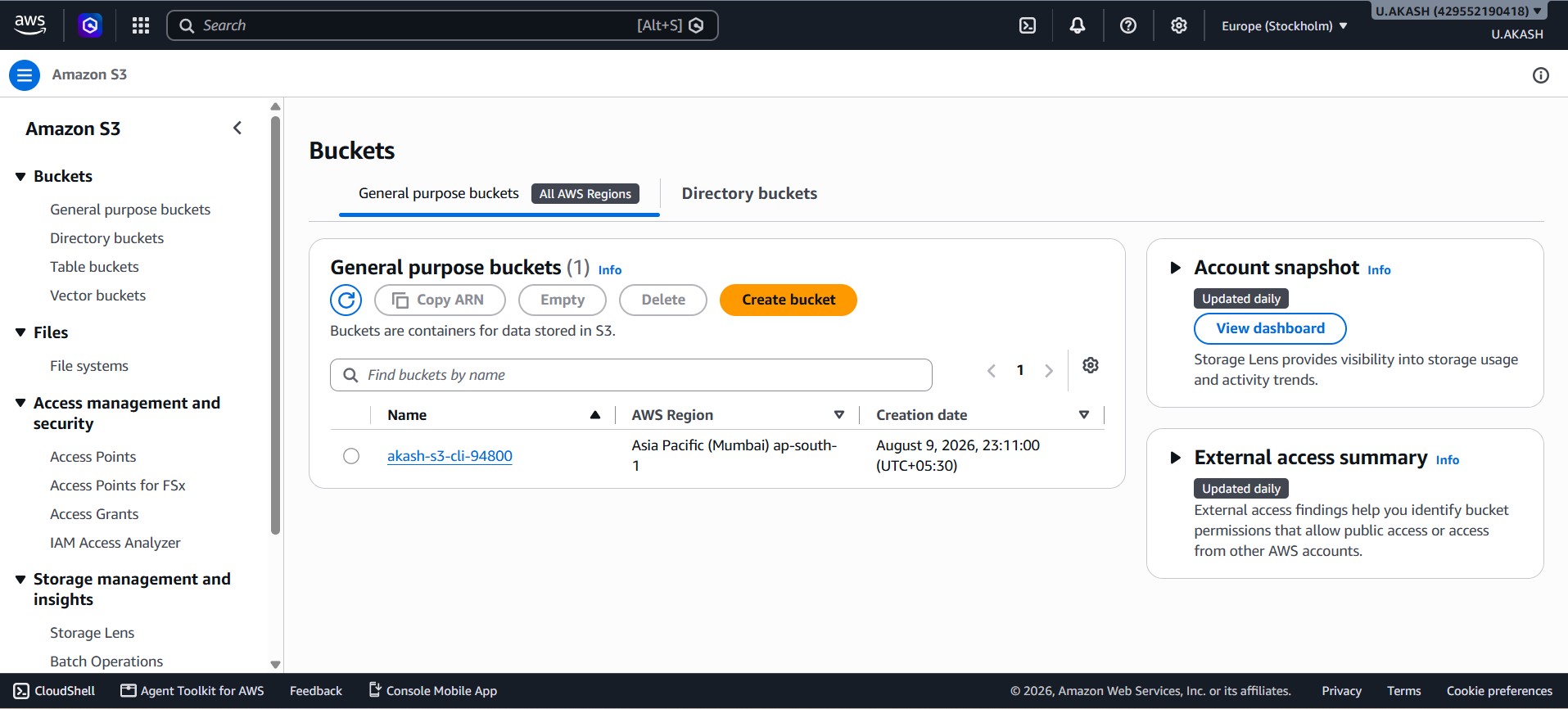
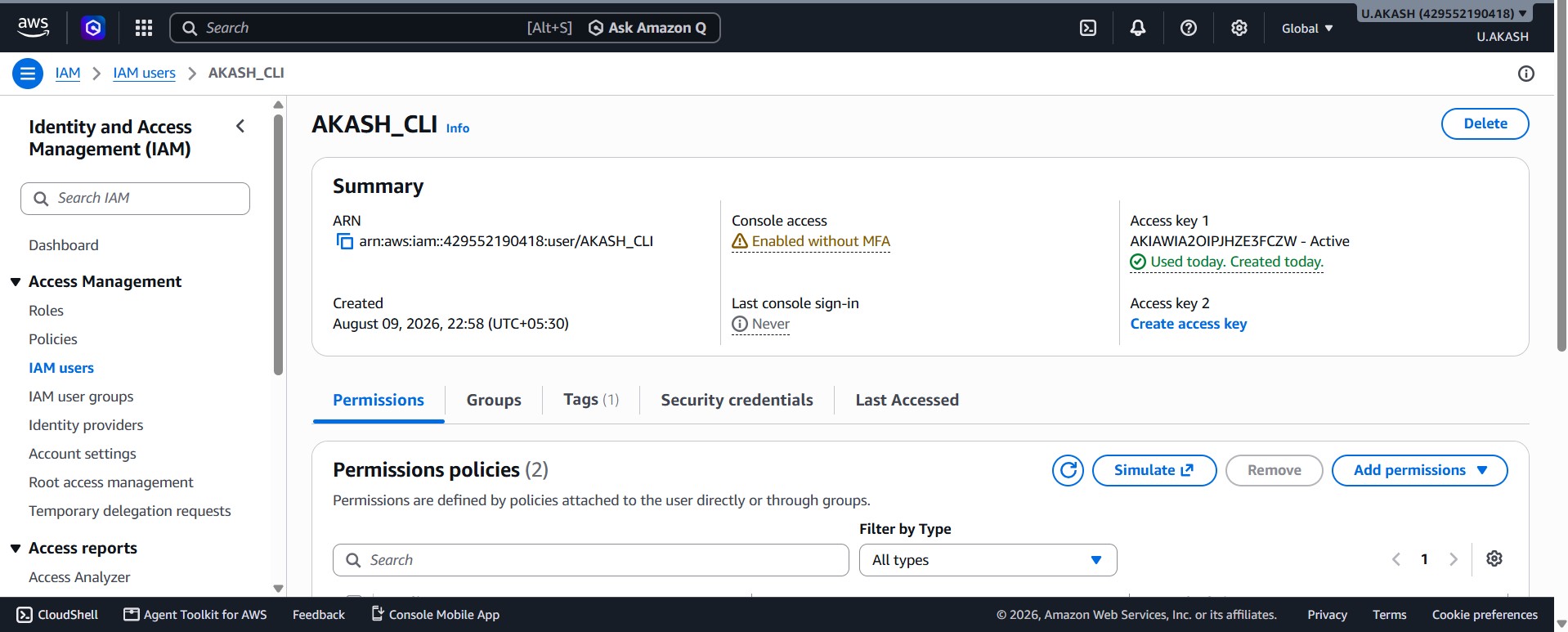
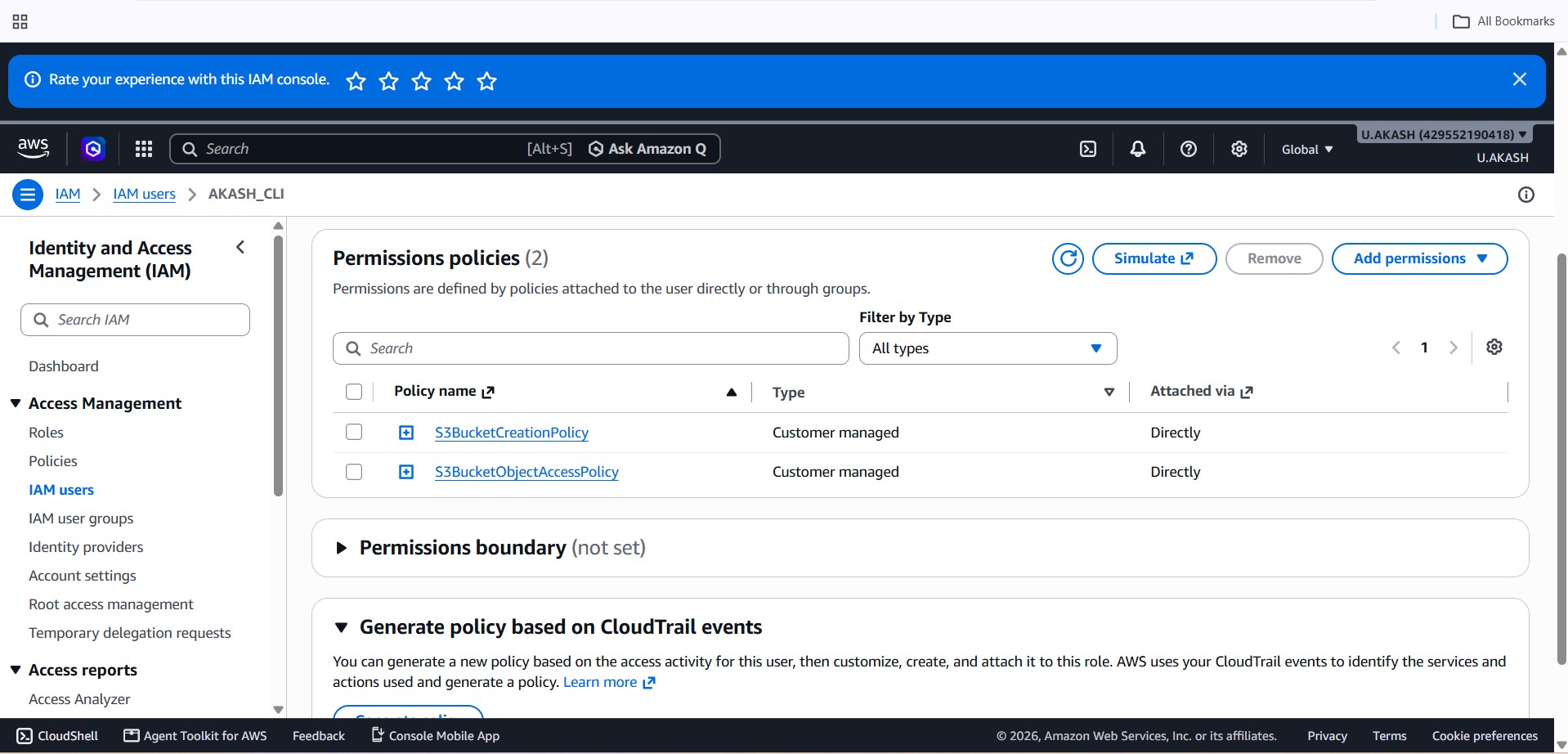
I first created an IAM user named AKASH_CLI with console and programmatic access. Instead of using an existing policy, I created custom IAM policies for the task. The S3BucketCreationPolicy was created to provide the required permissions for S3 bucket operations, while the S3BucketObjectAccessPolicy was created to allow listing, uploading, downloading and deleting objects from the specific S3 bucket. Both policies were then attached directly to the AKASH_CLI user.
After configuring IAM, I created an S3 bucket named akash-s3-cli-94800 in the ap-south-1 (Mumbai) region using the AWS CLI. I created a local upload and download folder and added a sample test.txt file to the upload folder.
I then performed the following S3 operations using the CLI:
- Uploaded
test.txtto the S3 bucket. - Listed the bucket contents to confirm the uploaded file.
- Downloaded the file back to the local
downloadfolder. - Checked the downloaded file and its contents.
- Deleted the file from the S3 bucket.
- Listed the bucket again to confirm it was empty.
- Used
aws sts get-caller-identityto confirm that the CLI was using theAKASH_CLIIAM user.
S3 Details
| Item | Details |
|---|---|
| Bucket | akash-s3-cli-94800 |
| Region | ap-south-1 (Mumbai) |
| IAM User | AKASH_CLI |
| Test File | test.txt |
| Operations | Upload, List, Download, Delete |
Through this task, I understood how custom IAM policies can be created and attached to users and how permissions control access to AWS resources. I also practiced managing an S3 bucket and its objects directly through the AWS CLI.
Images
click here for detailed CL report
TASK: TryHackMe UVCE MARVEL Level 1 (CL-CY) – Cybersecurity
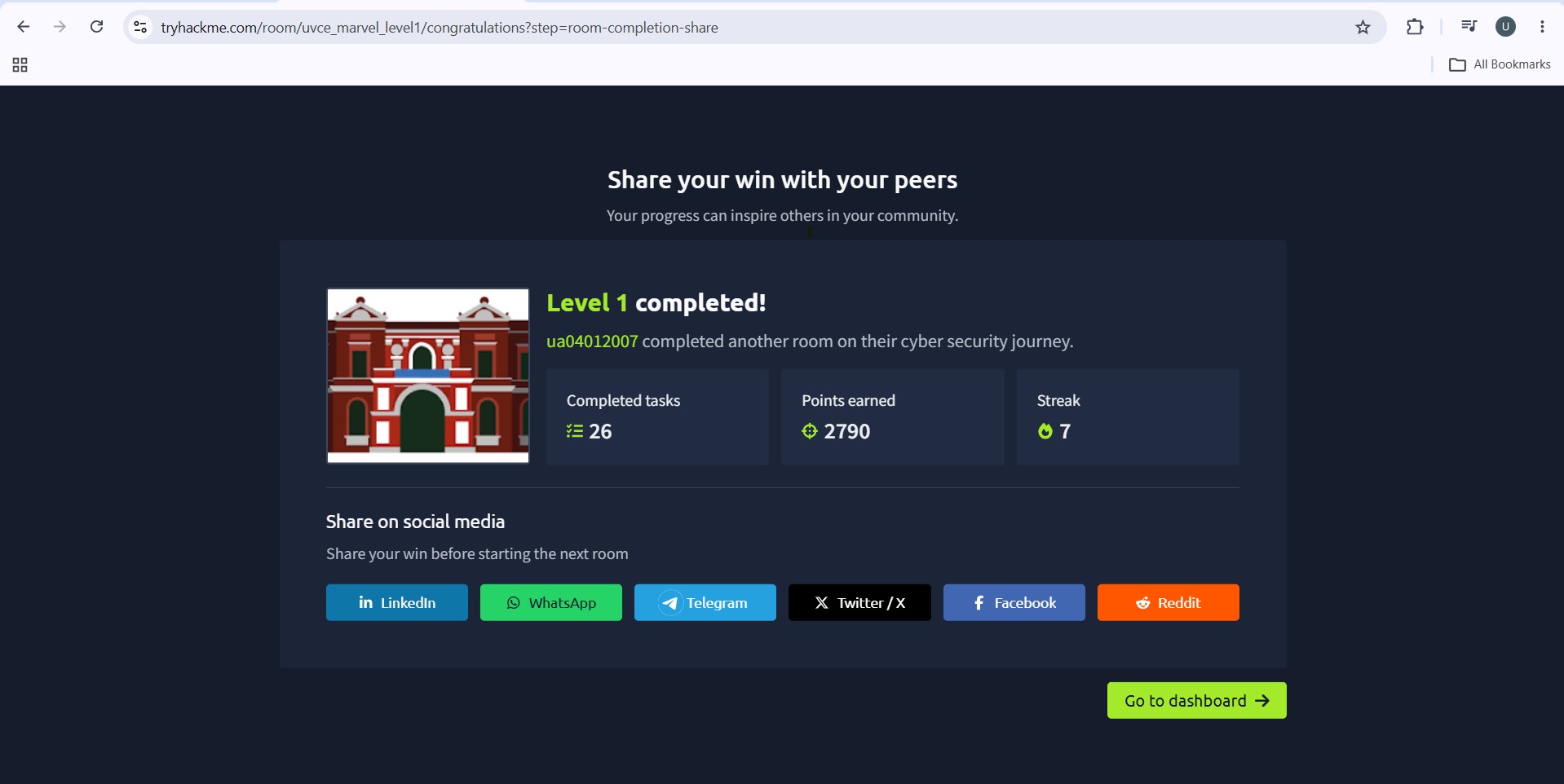
As part of the MARVEL Level 1 activities, I completed all 26 tasks in the UVCE MARVEL Level 1 TryHackMe room. The room provided a practical introduction to computer networking, operating systems, cryptography, and cybersecurity. I successfully completed all 26 tasks. The TryHackMe exercises helped me connect theoretical concepts with practical scenarios.
Images and attachments
click here for detailed CY report