Kushma's CLCY level 2
2 / 10 / 2026
Cloud Computing
TASK 1: Working with Git and GitHub Basics
Version Control is a system that records and manages changes made to files over time, allowing you to track modifications, collaborate with others, and restore previous versions when needed.
The two main types are:
1 Centralized Version Control System (CVCS): In a Centralized Version Control System, there is one central server that stores the entire project and its history.
2 Distributed Version Control System (DVCS): In a Distributed Version Control System, every developer has a complete copy of the repository, including all files and history.
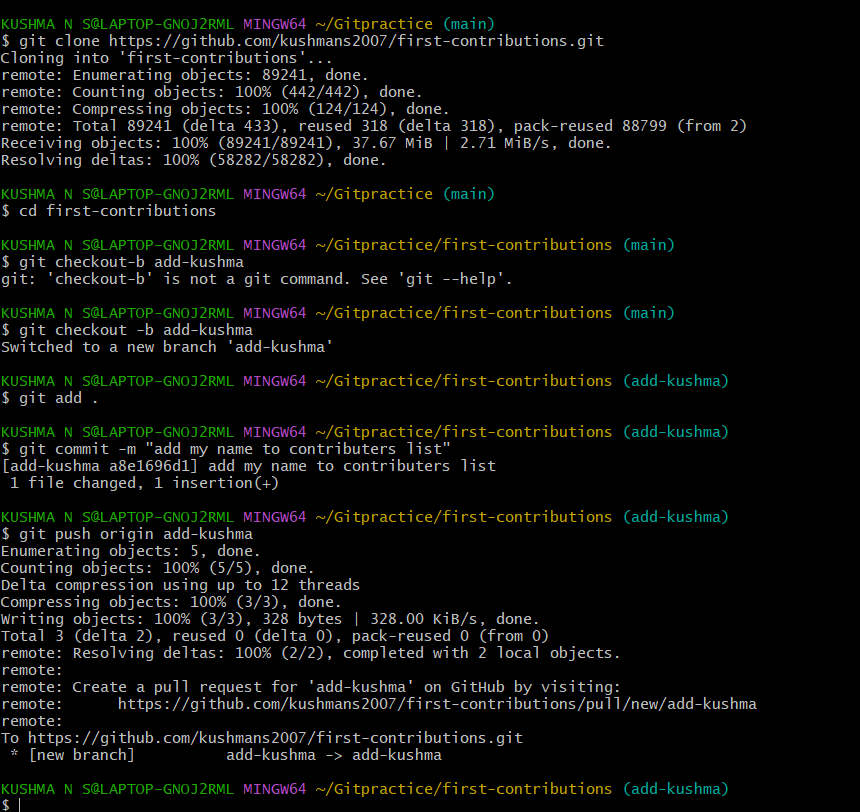
A branch is an independent line of development in Git.It allows developers to work on new features, bug fixes, or experiments without affecting the main codebase.
Create Branch : git checkout -b feature
      ↓
Make Changes
      ↓
Commit :
git add .
git commit -m "Added new feature"

      ↓
Push Branch : git push -u origin feature-login
      ↓
Open Pull Request
      ↓
Merge into Main
Git Rebase: Git Rebase is a command that moves your branch's commits on top of another branch, creating a cleaner and more linear commit history.
# Switch to feature branch
git checkout feature-login

# Update feature branch with latest main
git rebase main

# Resolve conflicts if any
git add .
git rebase --continue

# Push updated history
git push --force-with-lease
git cheery-pick is a Git command that copies a specific commit from one branch and applies it onto another branch.
TASK 2 : Exploring Docker Fundamentals
Virtual Machines virtualize the entire hardware and run their own operating system, while Containers share the host operating system and only package the application with its dependencies.
| Features | Virtual Machine | Container |
|---|---|---|
| Architecture | 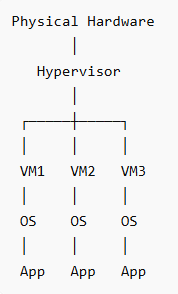 | 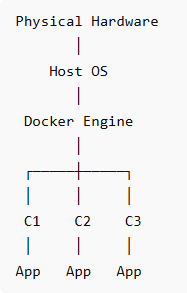 |
| OS | has its own OS | shares host OS kernel |
| Isolation | Full OS isolation | Process-level isolation |
| Size | Large(GBs) | Small(MBs) |
Docker CLI Commands :
- Pull Images from Docker Hub : docker pull nginx:1.22-alpine
- Run Containers : docker run nginx:1.22-alpine
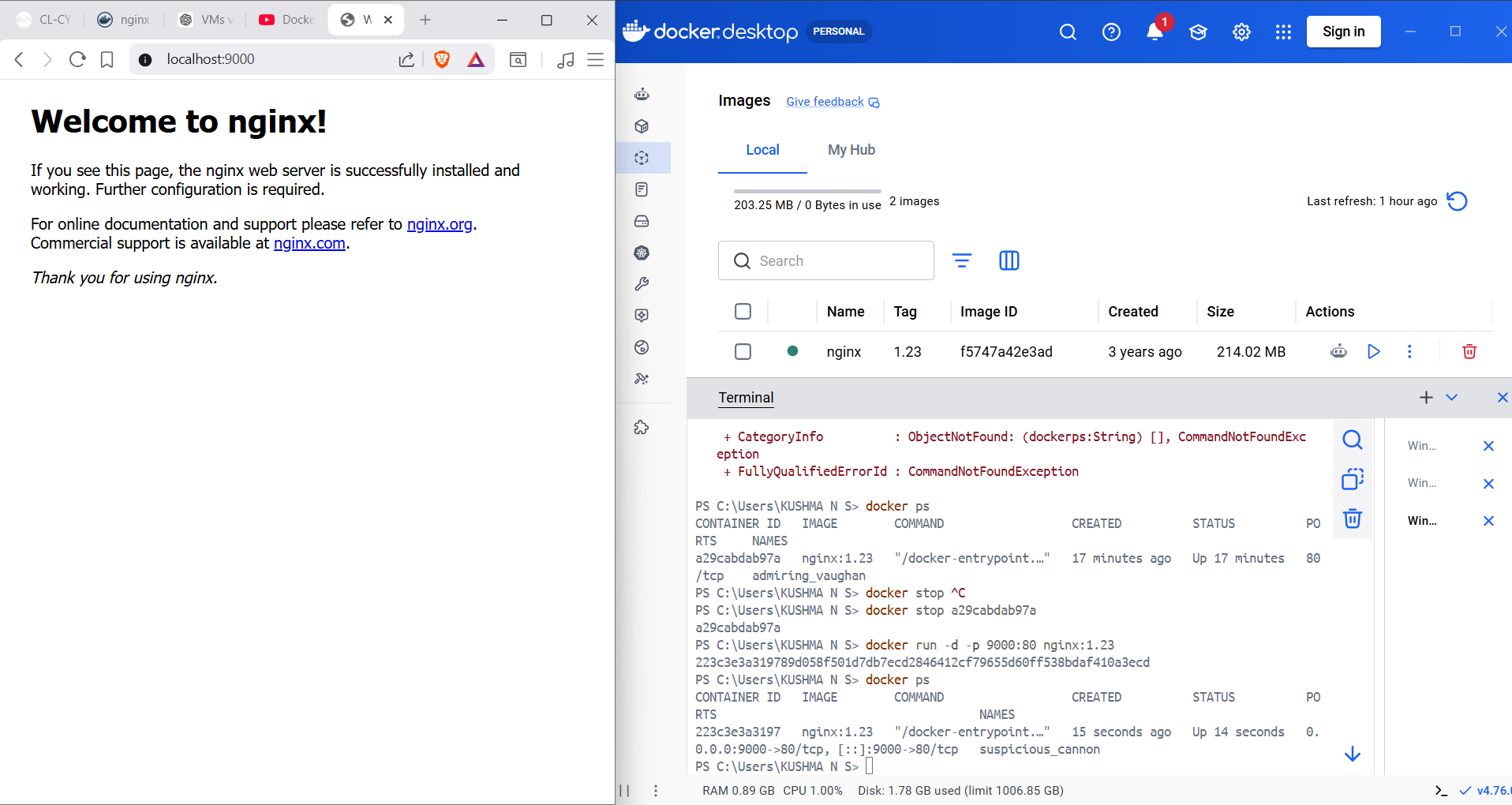
- Run a container in background (detached mode): docker run -d nginx:1.22-alpine
- Run and expose port: docker run -d --name mynginx -p 8080:80 nginx:1.22-alpine
- List running containers: docker ps
- View processes inside a container: docker top mynginx
- Dispaly logs: docker logs mynginx
- Inspect detailed information: docker inspect mynginx
- Start Container : docker start mynginx
- Stop Container : docker stop mynginx
- Restart Container : docker restart mynginx
- Remove Container : docker rm mynginx
TASK 3 : Dockerize a Simple Application
Dockerfile: It is a text document that contains commands to assembel an Dockerimage .
A Docker image is a packaged application along with everything it needs to run (code, libraries, dependencies, configuration).
A base image is the starting point for building a Docker image.
Dockerfile Directives :
- FROM: Specifies the base image.
- WORKDIR: Sets the working directory inside the container.
- COPY: Copies files from the host machine to the image.
- RUN: Executes commands while building the image
- CMD: Specifies the default command when the container starts.
Each Dockerfile instruction adds a snapshot of changes on top of the previous image state, and Docker builds the final filesystem by stacking those snapshots together
- docker history image-name: helps visualize how layers were created
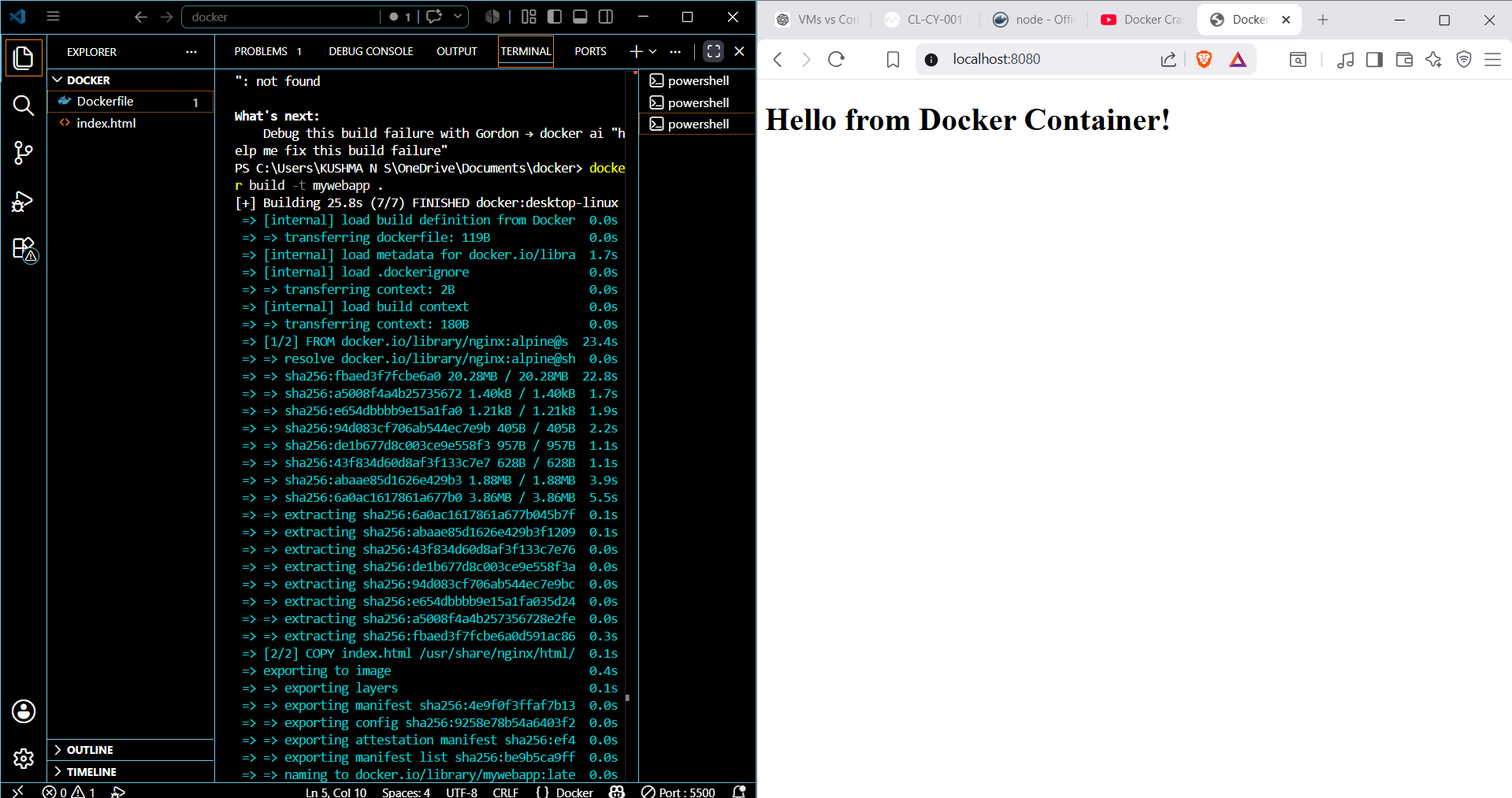
# Build image: docker build -t mywebapp .
# View image: docker images
# Run container: docker run -d --name webcontainer -p 8080:80 mywebapp
# Check running containers: docker ps
# View logs: docker logs webcontainer
# View image layers: docker history mywebapp
# Stop container: docker stop webcontainer
# Remove container: docker rm webcontainer
# Remove image: docker rmi mywebapp
Task 4: Launch and Manage an AWS EC2 Instance
AWS EC2 (Elastic Compute Cloud):
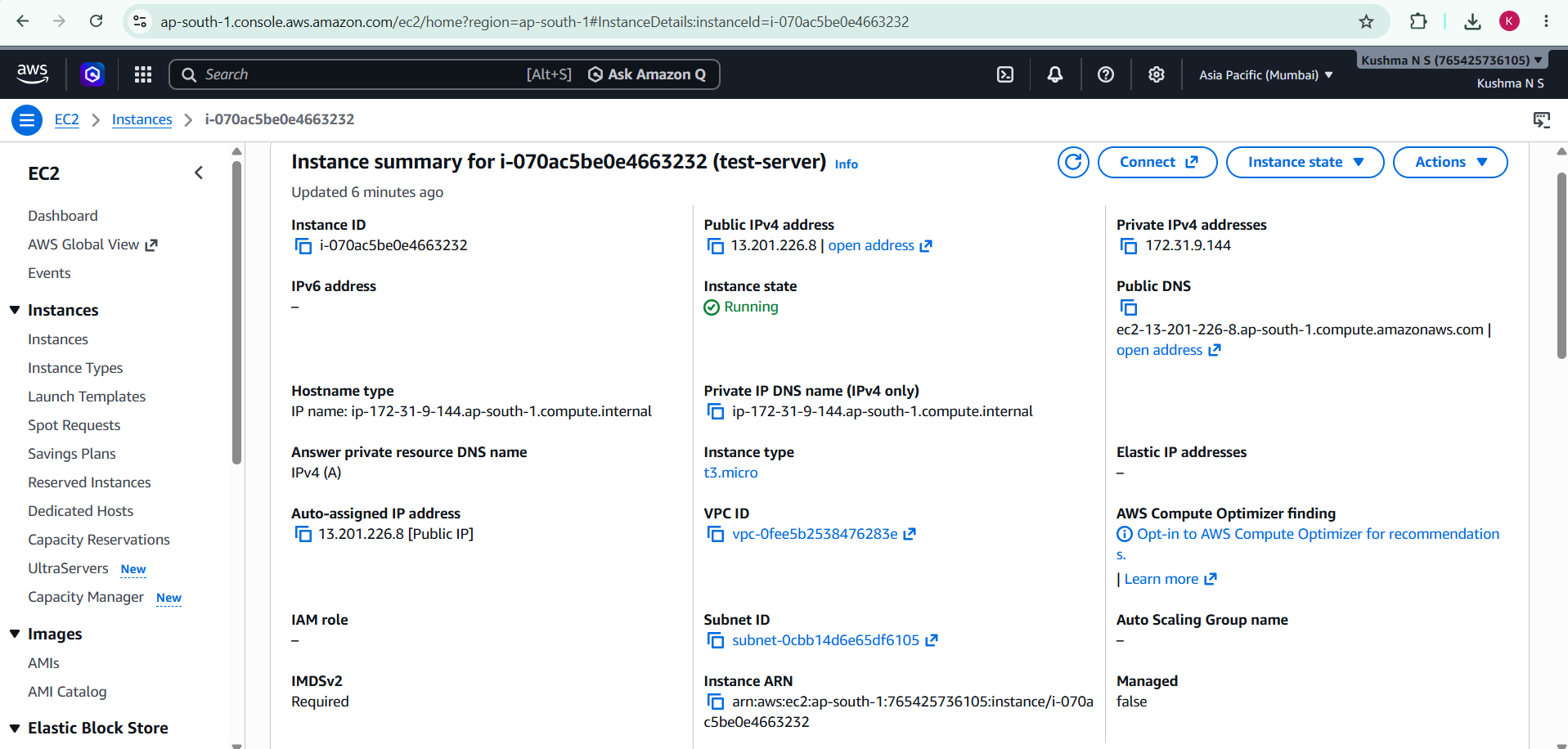
AWS EC2 is a cloud computing service that provides resizable virtual servers, called instances, for running applications and services.
EC2 Instance:
An EC2 instance is a virtual computer running in the AWS cloud with allocated CPU, memory, storage, and networking resources.
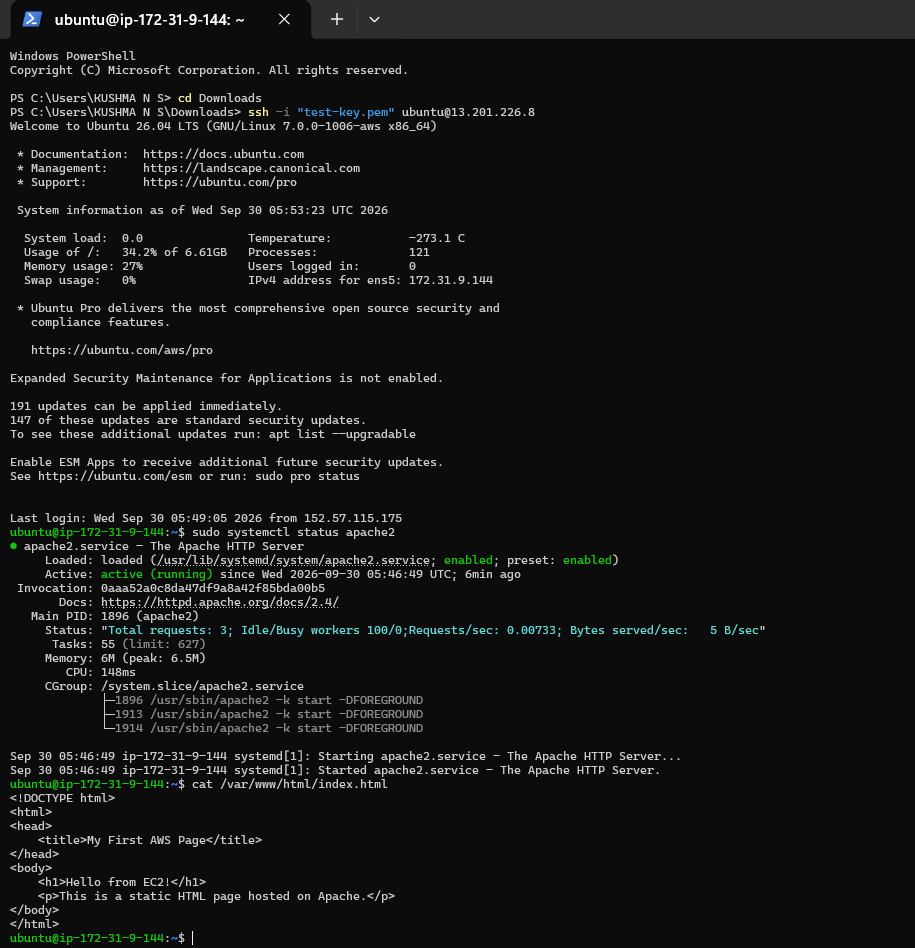
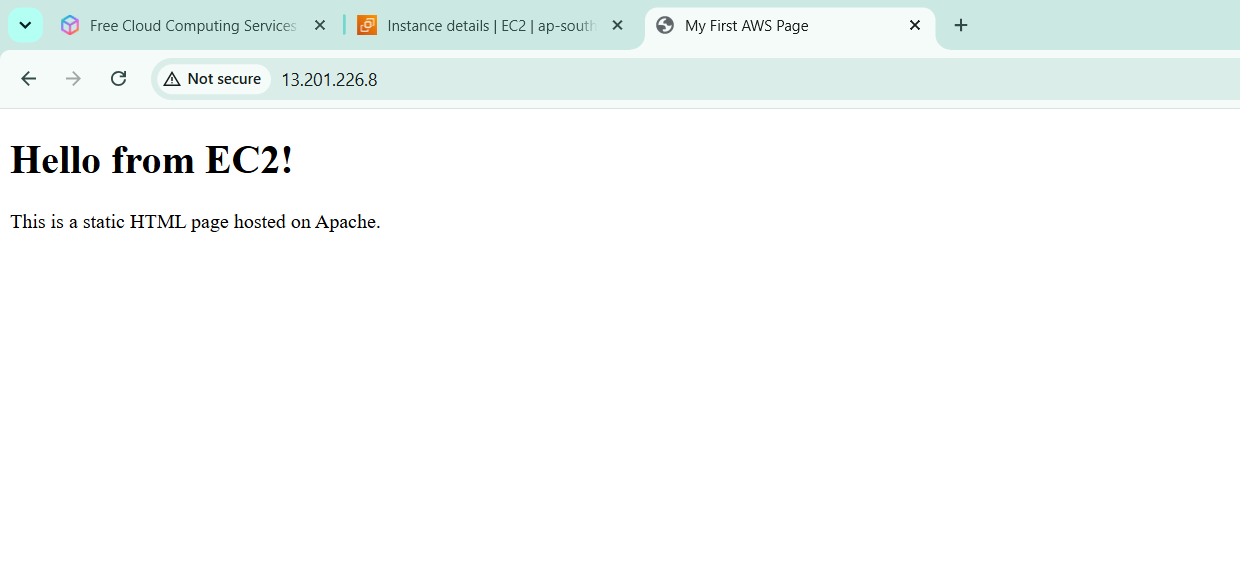
In this task, I explored AWS EC2 (Elastic Compute Cloud) and learned how to launch and configure a virtual server in the AWS cloud. I launched an Ubuntu EC2 instance,selected an appropriate instance type, configured its Security Group to allow SSH access on port 22 and HTTP access on port 80, and connected to the instance securely using an SSH client with a key pair.I understood how EC2 can be used to deploy and access web applications over the internet.
TASK 5: Kubernetes Basics and Writing Pod Specs
In this task, I learned the basic concepts of Kubernetes, including Clusters, Nodes, Pods, and the Control Plane.
- Kubernetes is an open-source platform that automates the deployment, management, scaling, and monitoring of containerized applications across a cluster of machines.
- A Kubernetes Cluster is a group of one or more machines (called nodes) that work together to run and manage containerized applications.
- A Node is a physical or virtual machine in a Kubernetes cluster where Pods are executed. Nodes provide the CPU, memory, and storage needed to run applications.
- A Pod is the smallest deployable unit in Kubernetes. It contains one or more containers that share the same network and storage resources.
- The Control Plane is the management component of Kubernetes. It schedules Pods, monitors the health of the cluster, manages resources, and ensures that the cluster remains in the desired state.
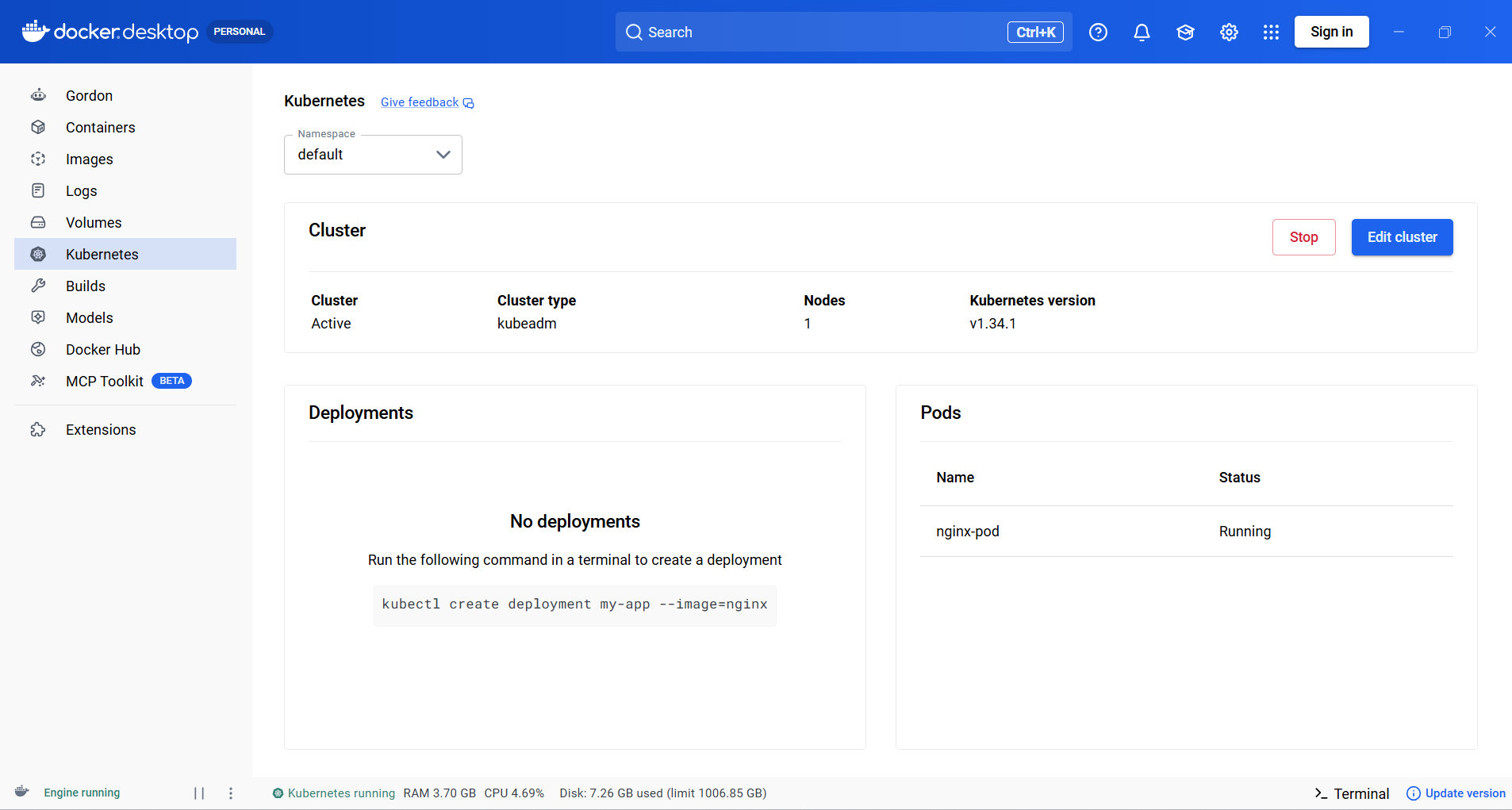
I created a Pod manifest file (nginx-pod.yaml) using YAML to deploy an Nginx container. Using Docker Desktop's Kubernetes cluster and kubectl commands, I deployed the Pod, verified that it was running successfully, inspected its details, and viewed its logs. This task provided hands-on experience in deploying and managing containers using Kubernetes.
.png)
TASK 6: Manage AWS S3 and IAM with CLI
In this task, I learned the fundamentals of AWS IAM and Amazon S3 and how they work together to provide secure cloud storage. I learned about IAM users, roles, and policies, and understood the importance of least-privilege access, where users are given only the permissions they need. I also learned how to configure the AWS CLI with credentials and verify connectivity to AWS services.
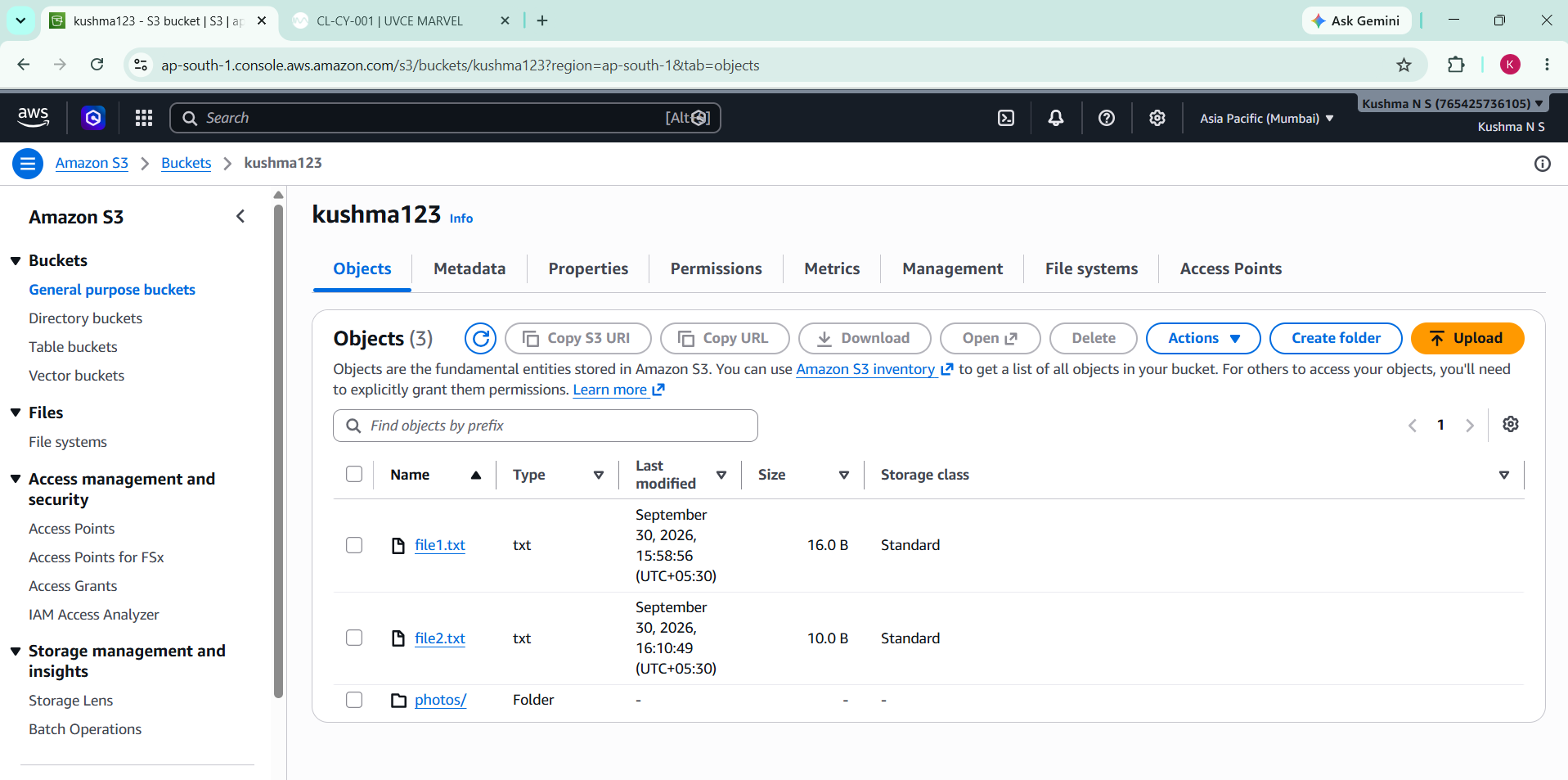
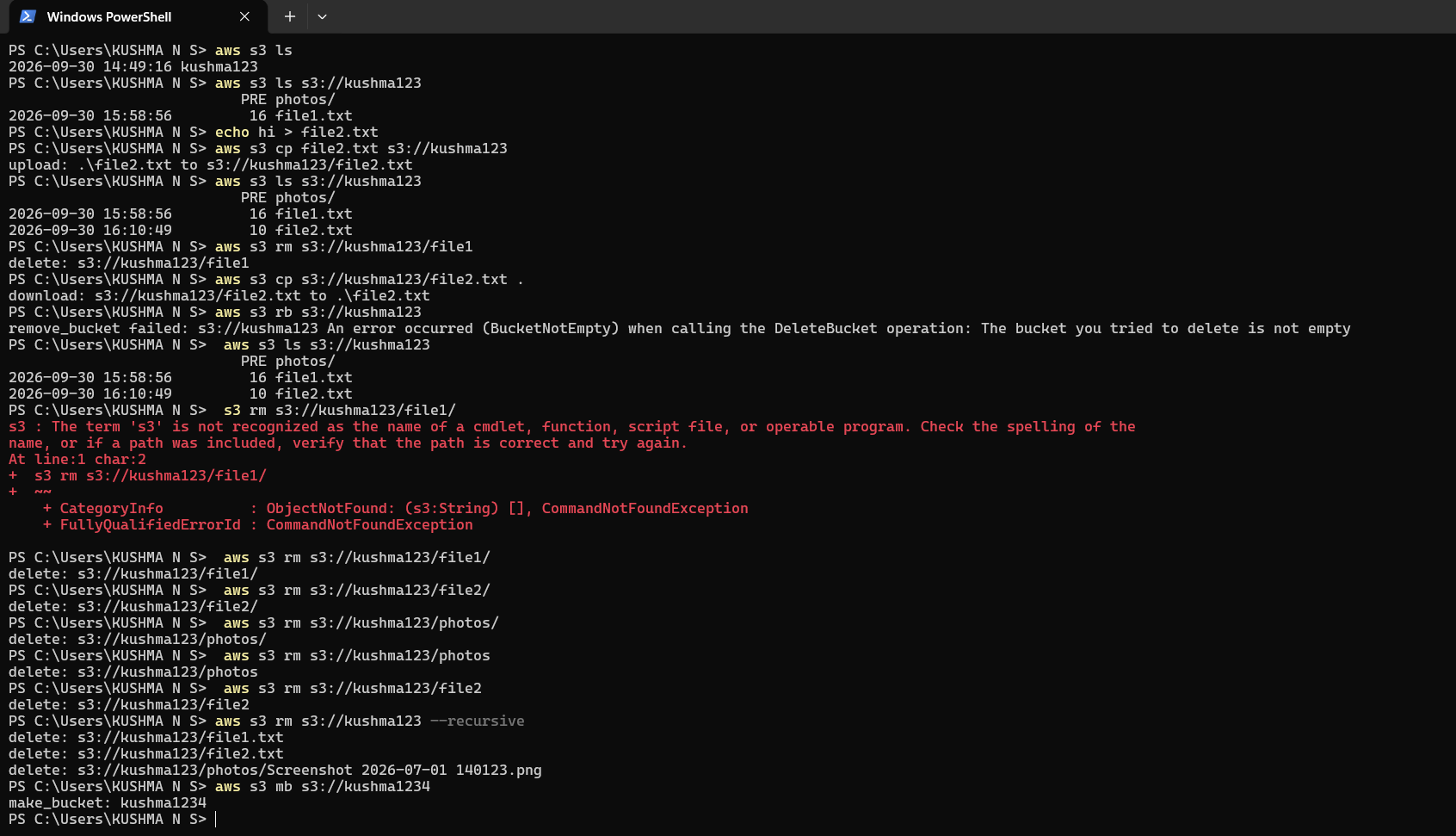
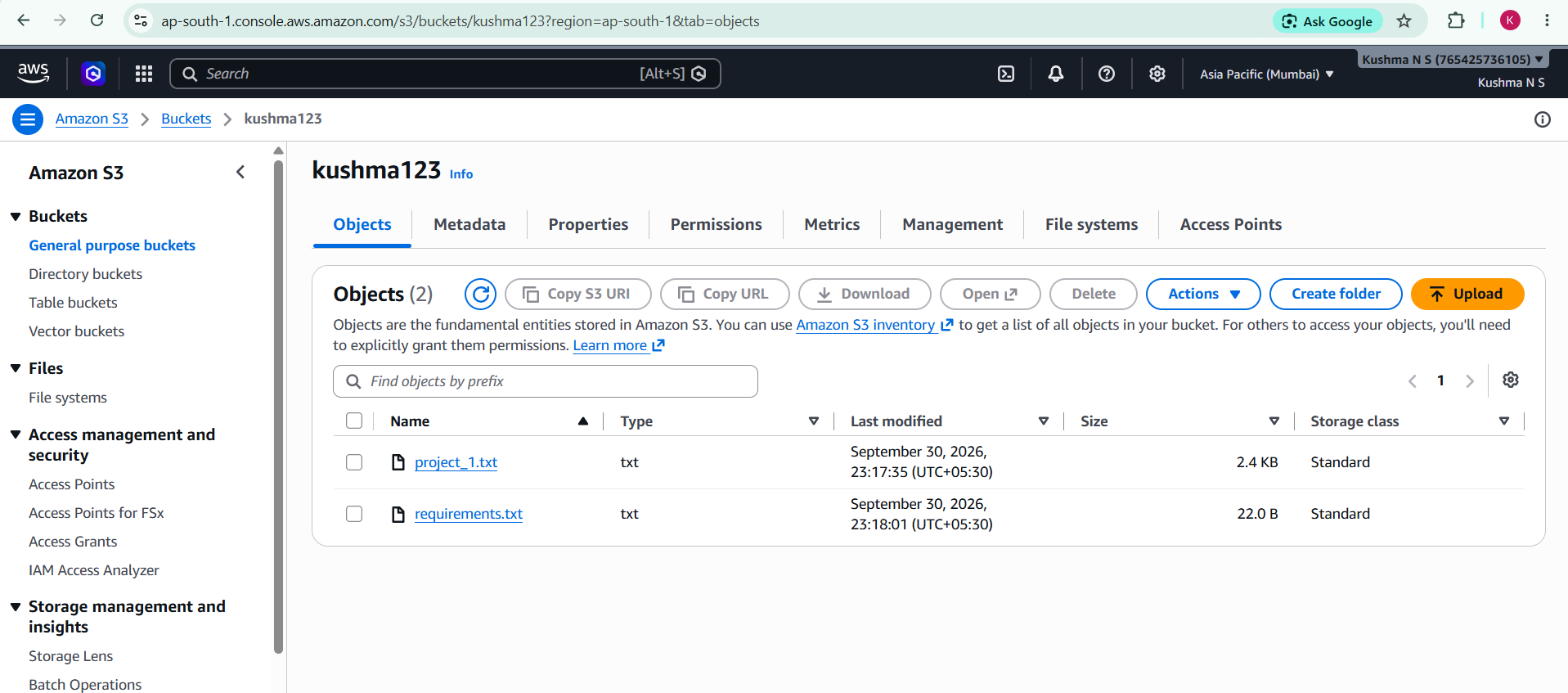
I also gained practical experience managing S3 buckets and objects using AWS CLI commands. I created an S3 bucket, uploaded files, listed bucket contents, downloaded objects, and tested object deletion. I also applied IAM policies to restrict specific S3 actions for a user, which helped me understand how access control can be used to secure cloud resources.
TASK 7: Deploy a Containerized Application on Kubernetes
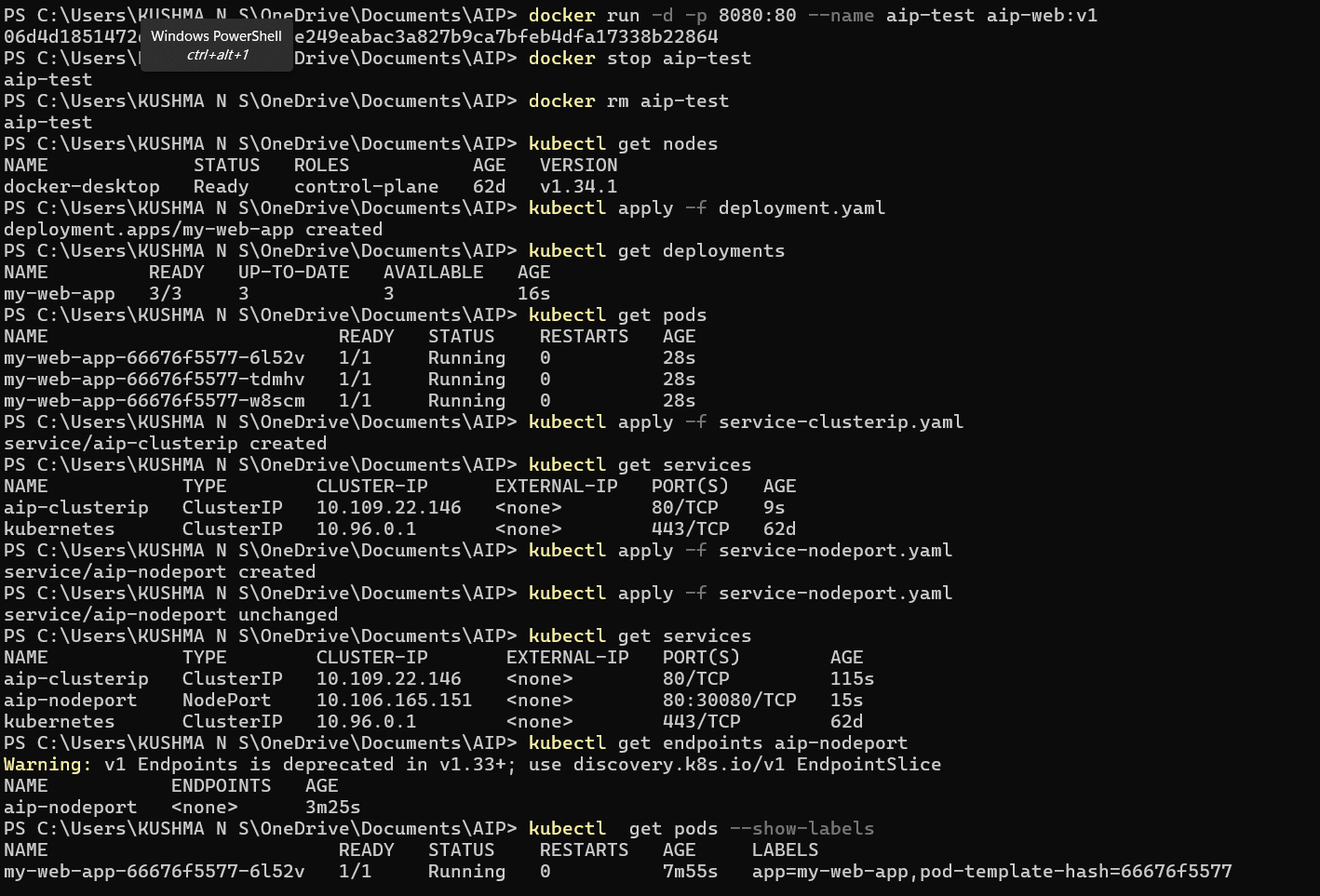
I containerized my own web application using a Dockerfile and deployed it to a local Kubernetes cluster using a Deployment YAML file. The Deployment was configured to manage multiple replicas of the application. I also created ClusterIP and NodePort Services using YAML manifests, where ClusterIP provided internal access to the application and NodePort exposed it externally for browser access. I verified the deployment using commands such as kubectl get nodes, kubectl get deployments, and kubectl get pods.
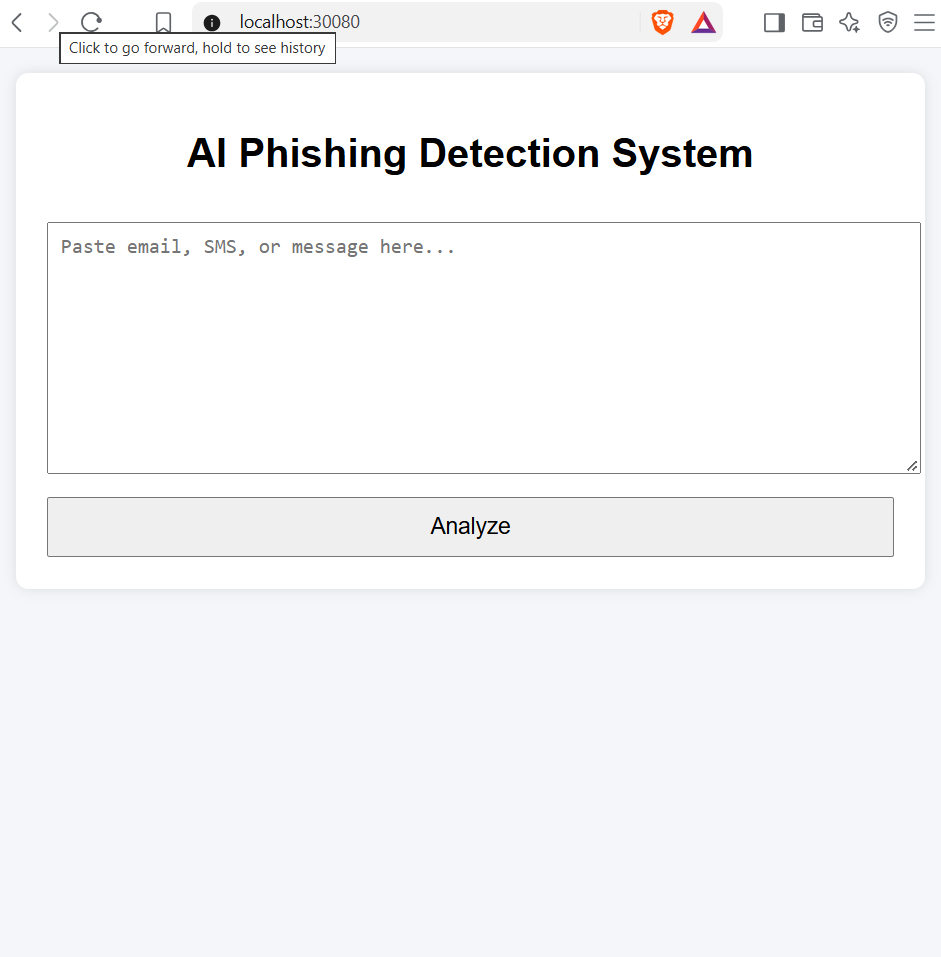
I further practiced managing and monitoring the deployed application using commands such as kubectl get services, kubectl get endpoints, and kubectl describe. I scaled the application from 3 replicas to 5 and then back to 2 replicas using kubectl scale and observed how Kubernetes manages the Pods during scaling. Finally, I accessed my application through localhost:30080 and verified that it was running successfully.
TASK 8: Use Kubernetes Secrets and Environment Variables
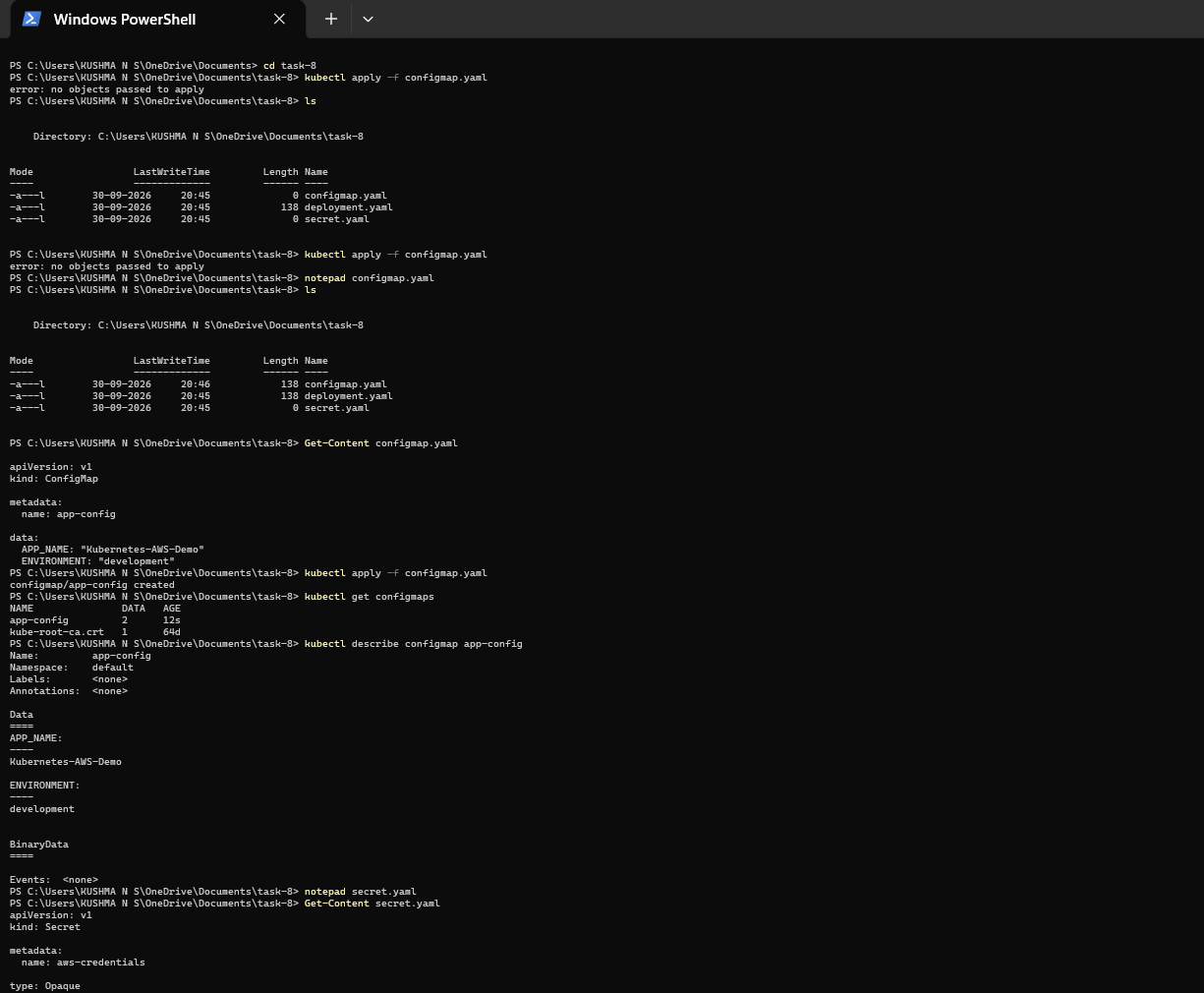
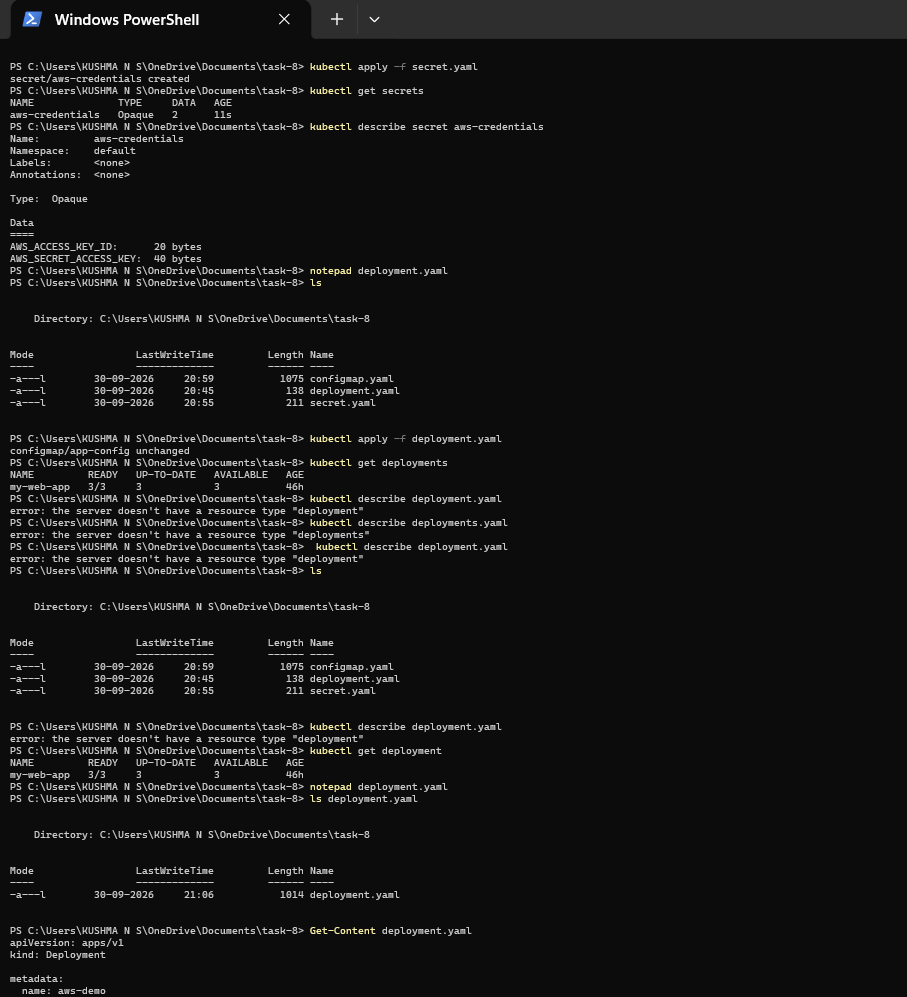
In this task, I learned how Kubernetes manages application configuration using ConfigMaps and Secrets. I created a ConfigMap to store non-sensitive configuration such as the application name and environment, and a Kubernetes Secret to store sensitive AWS credentials. I learned how to inject these values into Pods as environment variables using configMapKeyRef and secretKeyRef, instead of hardcoding sensitive information directly into the application configuration. This helped me understand the difference between configuration data and sensitive data and the importance of handling credentials securely.
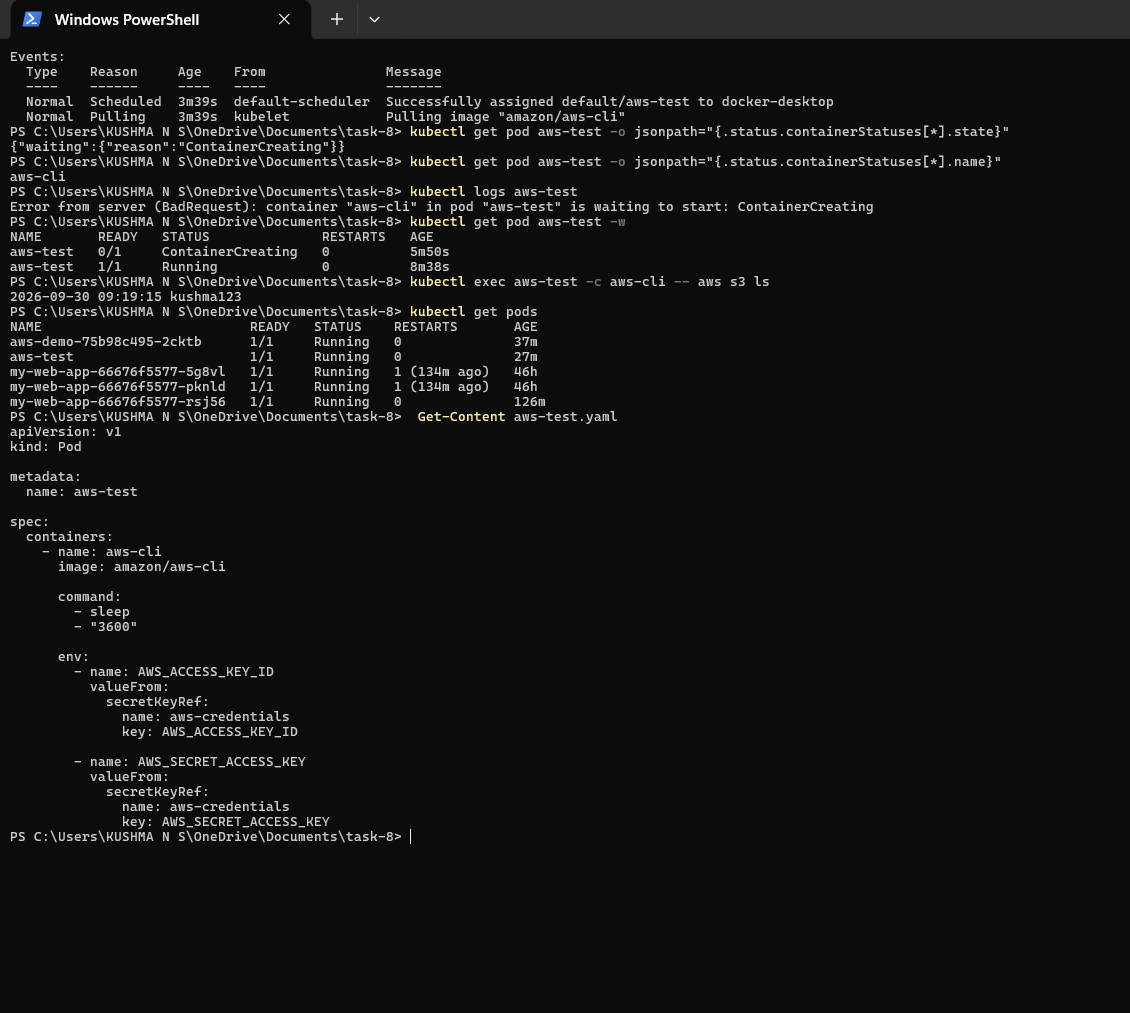
I also learned how to integrate a Kubernetes Pod with AWS S3 using the AWS CLI. I created an AWS CLI Pod, provided the AWS credentials through the Kubernetes Secret, and monitored the Pod until it reached the Running state. Finally, I used the aws s3 ls command inside the Pod to verify that the credentials were working and that the Pod could successfully access the S3 bucket.
TASK 9: Deploy an App to Push Files from Kubernetes to S3
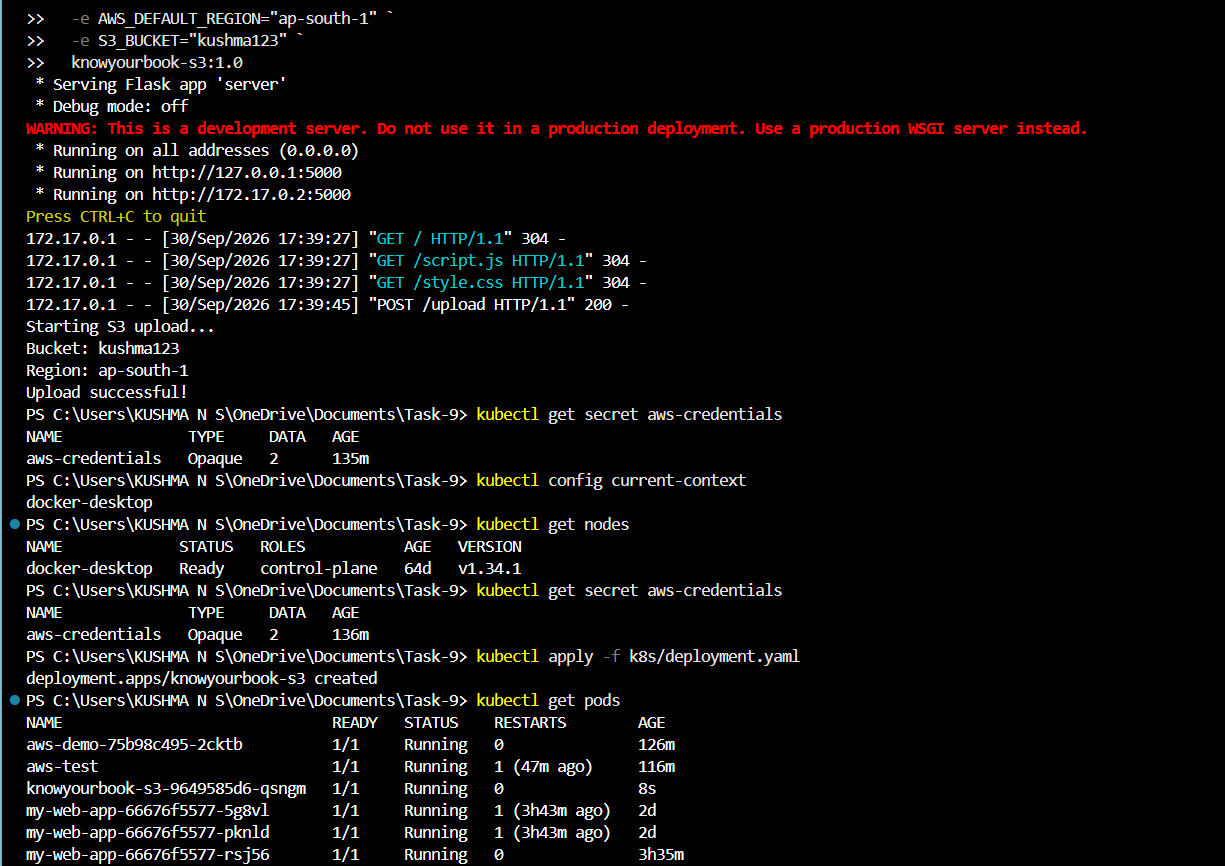
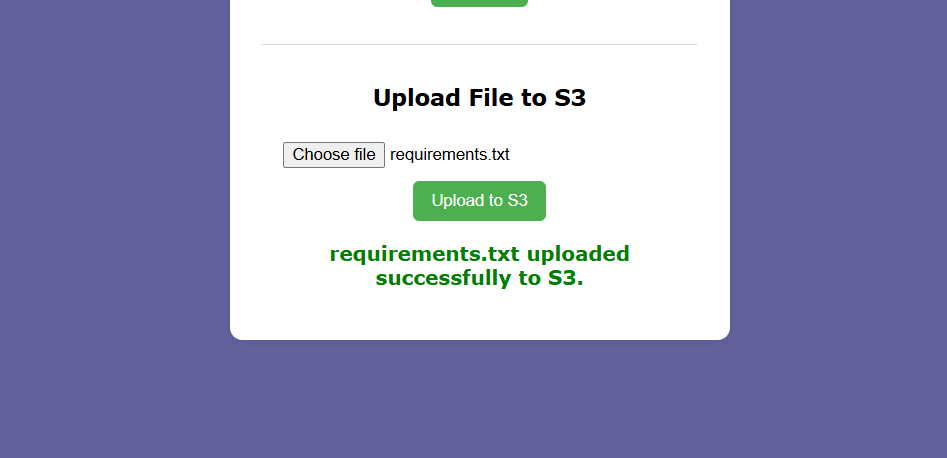
In this task, I learned how to build and containerize a file-upload web application using HTML, CSS, JavaScript, Python Flask, and Boto3. I integrated the application with AWS S3 so that files selected through the web interface could be uploaded to an S3 bucket. I learned how Docker packages the application along with its required Python dependencies and provides a consistent environment for running the application. I also understood how Flask handles the file-upload request and how Boto3 is used to communicate with AWS S3.
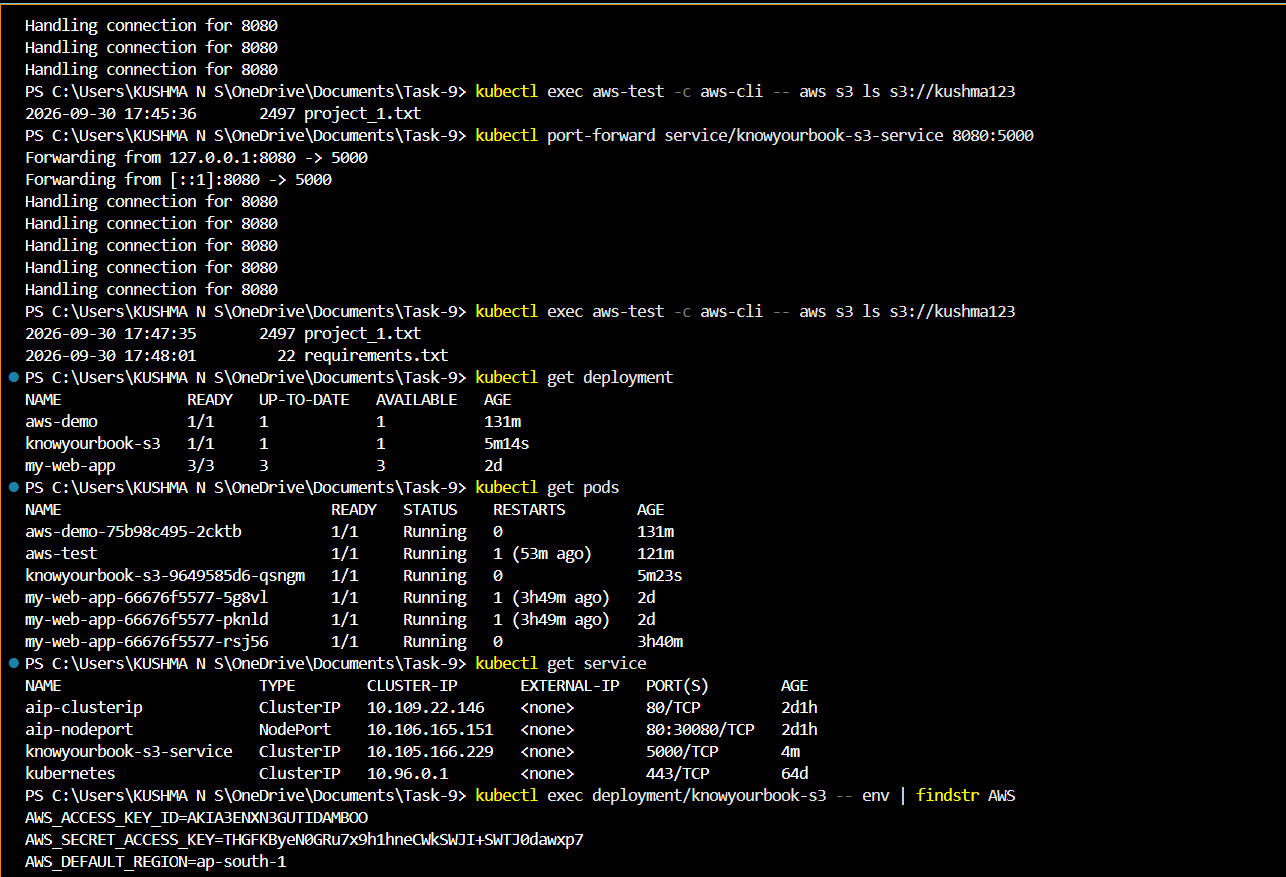
I also learned how to deploy the Dockerized application on Kubernetes and securely provide AWS credentials using Kubernetes Secrets instead of hardcoding them in the application. I created a Kubernetes Deployment and Service, accessed the application using port forwarding, and verified that files uploaded through the Kubernetes application were successfully stored in the S3 bucket.
To see full report : click here