
Level 2 Report
10 / 10 / 2026
TASK 1: CI/CD (Continuous Integration & Continuous Delivery) – Introduction to Jenkins
Introduction
In this task, I learned about different software development methods and how modern practices have improved the process. First, I studied older methods like the Waterfall model and Agile method. In these methods, if there are new client requirements or changes, it can take a lot of time to update everything. This makes the process slow and sometimes inefficient.
To solve these problems, modern approaches like Continuous Integration (CI) and Continuous Delivery/Deployment (CD) are used.
Understanding CI/CD
Continuous Integration (CI) means developers regularly add their code to a shared repository, and the code is automatically built and tested. This helps in finding errors early.
Continuous Delivery (CD) means the application is always ready to be deployed. Continuous Deployment means the application is automatically deployed after successful testing.
CI/CD helps connect the development team and operations team. Because of this, the feedback is faster, there is less delay, and the work becomes more efficient.

Introduction to Jenkins
To implement CI/CD, I used Jenkins, which is an open-source tool used for automation.
Jenkins allows us to create a pipeline using a file called a Jenkinsfile. This file contains all the steps needed for building, testing, and deploying the application.
Pipeline Implementation
I created a Jenkinsfile in my GitHub repository. In this file, I defined different stages of the pipeline. Each stage has specific tasks that are executed one by one.
The stages I used are:
1.Checkout Stage
- It takes the code from the GitHub repository.
2.Install Dependencies Stage
- It installs required packages using
npm install.
3.Build Stage
- It prepares the application.
4.Test Stage
- It runs testing (in my case, it is a basic placeholder).
5.Run Application Stage
- It tries to start the application.
6.Deploy Stage
- It shows deployment (simulated in this task).
Execution Process
After creating the Jenkinsfile, I:
- Installed Jenkins on my Mac
- Started Jenkins and opened it in the browser
- Created a new pipeline job
- Connected my GitHub repository
- Selected the Jenkinsfile from the repository
- Ran the pipeline using Build Now
The pipeline ran successfully, and I was able to see the output in the Jenkins console.


Outcome
From this task, I learned:
- Basics of CI/CD
- How automation helps in development
- How to create and use a Jenkins pipeline
- How to write a Jenkinsfile
- How different stages like build, test, and deploy work
Conclusion
This task helped me understand how CI/CD makes the development process faster and easier. By using Jenkins, I was able to automate different steps of the project. It also helped me understand how real-world projects use automation to improve efficiency.
Github click here
TASK 2: Hashing
Objective: To implement a secure system for storing and verifying user passwords using hashing techniques.
Description:
In this task, a simple authentication system was developed using Python and Flask. Instead of storing plain text passwords, the passwords were converted into hashed values using the hashlib library. This ensures better security, as hashed passwords cannot be easily reversed.
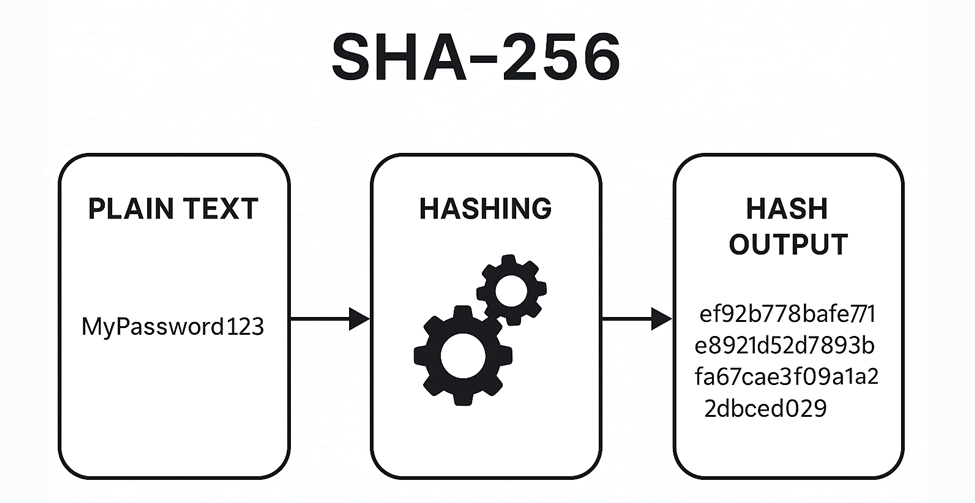
Implementation:
- Used SHA-256 hashing to encrypt user passwords.
- Stored user credentials (username and hashed password) in a SQLite database.
- Created a registration system to add new users.
- Built a login system to verify users by comparing hashed passwords.
- Developed a basic UI using HTML for user interaction.

.jpeg?raw=true)
.jpeg)
.jpeg?raw=true)
Outcome:
- Successfully implemented secure password storage.
- Understood the concept of one-way hashing.
- Learned how authentication systems work in real-world applications.
.jpeg?raw=true)
Conclusion: This task helped in understanding the importance of password security and how hashing protects user data. It also provided practical experience in backend development and database integration.
Github click here
TASK 3: NMap
What did I learn?
- Nmap (Network Mapper) is a network scanning tool used to understand what is available on a network.
- It can help us find active hosts, open ports, running services, service versions, and the probable operating system of a target.
- I learned that an open port usually means some service is listening on that port, while a closed port means there is no service accepting connections there.
- Nmap works by sending different types of network requests/packets to a target and analyzing the responses.
- I also learned that scanning
localhostchecks the same machine, while scanning an IP address checks the machine through its network interface. - During my testing, the default scan initially showed all 1000 scanned ports as closed. I then started a simple Python HTTP server on port 8000 and scanned it again. Nmap was then able to detect the port as open and identify the service.
- OS detection is not always 100% accurate. Nmap gives its best estimate based on the responses it receives.
Basic Nmap Commands and Their Use Cases
| Command | Description | Use Case |
|---|---|---|
nmap | Performs a basic scan of the target's commonly used TCP ports. | Used to get a quick idea of the target's open ports. |
nmap -sn | Performs host discovery without doing a normal port scan. | Used to find which hosts are active on a network. |
nmap -p 8000 | Scans a specific port. | Useful when we want to check whether a particular service is accessible. |
nmap -p 1-1000 | Scans ports from 1 to 1000. | Used to check a specific range of commonly used ports. |
nmap -p- | Scans all TCP ports from 1 to 65535. | Used when a more complete port scan is required. |
nmap -sV | Detects the services and attempts to identify their versions. | Helps understand what software is running on open ports. |
nmap -O | Attempts to identify the target's operating system. | Useful for understanding the type of system being scanned. |
nmap -sV -O | Performs service/version detection along with OS detection. | Gives more detailed information about the target. |
nmap -Pn | Skips host discovery and treats the target as online. | Useful when normal host discovery is blocked. |
nmap -T4 | Increases the scan speed. | Useful when a faster scan is required on an authorized network. |
nmap -sC | Runs Nmap's default NSE scripts. | Useful for gathering additional information about services and configurations. |
nmap --traceroute | Attempts to show the network path to the target. | Useful for understanding routing and troubleshooting network connectivity. |
nmap -oN output.txt | Saves the scan in normal text format. | Useful for keeping scan results for later analysis and reporting. |
nmap -oX output.xml | Saves the scan in XML format. | Useful when scan results need to be processed by other tools. |
My Nmap Scan Results
During the practical, I first scanned my Kali machine and found that the host was up, but the default 1000 TCP ports were closed.
To demonstrate an open port, I started a temporary Python HTTP server on port 8000 and scanned the port using Nmap.
The scan detected:
8000/tcp open http
Using service detection, Nmap identified the service as:
SimpleHTTPServer 0.6 (Python 3.11.4)
I also performed OS detection. Nmap identified the target as a Linux-based system, although OS detection can sometimes be approximate depending on the available network information.


Analysis
From this task, I understood why open ports are important during network scanning. An open port tells us that a service is listening and accepting connections. By identifying the service and its version, we can understand what is exposed on the system.
I also understood that having an open port is not automatically a security problem. The important thing is whether the service is required and properly secured.
The scan also showed that Nmap cannot always identify the operating system with complete accuracy. Its result depends on the responses received from the target.
Conclusion
This task helped me understand the practical use of Nmap for host discovery, port scanning, service detection and OS detection. I also learned how the result changes when a service is started on a particular port. Overall, Nmap can give a quick picture of what services are exposed on a system and can be useful for network administration and security auditing.
TASK 4: Docker
What I Learned
Docker is a platform used to package, distribute, and run applications in isolated environments called containers. It helps ensure that an application works consistently across different machines and avoids the common “it works on my machine” problem.
Docker Analogy
Imagine I have a Python application that requires Python, certain libraries, and other dependencies. Instead of installing everything manually on every system, Docker packages the application and its dependencies into a container. This container can then run on another developer's machine, a server, or the cloud with the same setup.
VM vs Containers
- VMs contain a complete operating system and their own kernel, making them heavier.
- Containers share the host OS kernel, making them lightweight and faster to start.
- Containers generally require less memory and CPU compared to VMs.
Images vs Containers
- Docker Image → A read-only blueprint/template used to create containers. It contains the application, dependencies, runtime, and required configuration.
- Docker Container → A running instance of an image. It has a writable layer and runs the application in an isolated environment.
Dockerfile
A Dockerfile is a text file containing instructions to build a Docker image. It makes the application environment reproducible and portable.
Docker Compose
I also learned about Docker Compose, which is used to manage multiple containers using a YAML configuration file. It allows services, networks, and volumes to be defined and managed together.
Commands I Practiced
docker --version
docker pull hello-world
docker run hello-world
docker images
docker ps
docker ps -a
docker build -t my-nginx .
docker run -d -p 8080:80 --name my-nginx-container my-nginx
docker stop my-nginx-container
docker start my-nginx-container
docker logs my-nginx-container
docker rm my-nginx-container
docker rmi my-nginx
I also created a Dockerfile containing:
FROM nginx:latest
Then I built an image from it and ran it as a container.
Key Takeaway
The main concept I understood is:
Dockerfile → Image → Container
Docker makes applications easier to package, share, and run consistently across different environments.


Remaining Report GitHub.